ASS to SRT Converter — Clean Subtitles for Any Player
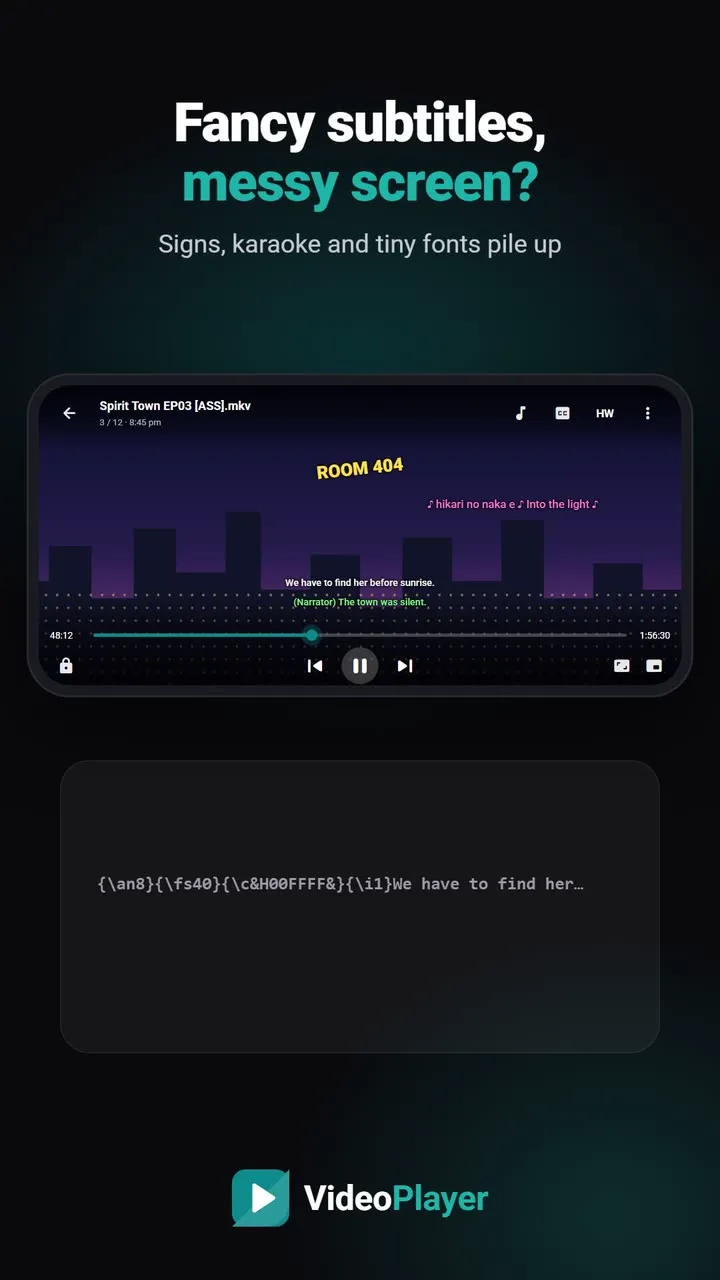
ASS (Advanced SubStation Alpha) subtitles can do almost anything: fonts, colours, karaoke, signs placed on screen. That’s why anime fansubs love them. But many TVs, set-top boxes and simple players either ignore ASS files or show them as a mess. Converting ASS to SRT gives you plain, readable dialogue that plays everywhere. Choose a file below; the conversion happens in your browser and nothing is uploaded.
🔒 Runs in your browser — your file is never uploaded.
How to convert ASS to SRT
- Choose your .ass or .ssa file, or paste its text.
- The SRT appears in the preview right away, with a count of lines converted.
- Press Download to save it, or Copy to paste it somewhere else.
What is kept and what is dropped
| In the ASS file | In the SRT |
|---|---|
| Dialogue text and timing | Kept exactly |
| Italic and bold ({\i1}, {\b1}) | Kept as <i> and <b> |
| Line breaks (\N) | Kept |
| Fonts, colours, outlines | Dropped — SRT has no styles |
| Positions, signs, karaoke | Text kept, effects dropped |
| Vector drawings ({\p1}) | Removed |
| Comment lines | Removed |
Lines are sorted by start time and numbered from 1, which is what SRT players expect.
When to convert ASS to SRT — and when not to
Convert when your TV or player shows nothing, shows raw codes like {\an8}, or when stacked signs cover the picture. Also convert before translating: plain text translates better.
Don’t convert if you watch on a player with full ASS support and love the typesetting. mpv and VLC render ASS faithfully; once you convert, the styling is gone for that copy. Your original file is never changed, so you can always go back.
A quick test helps you decide: play a few minutes on the device you actually use. If the dialogue sits neatly at the bottom and signs don’t cover faces, keep the ASS file. If you see overlapping text, tiny letters or nothing at all, convert ASS to SRT and try again — it takes a few seconds.
ASS, SSA and SRT in one minute
SRT (SubRip) is the simplest subtitle format: a number, a start and end time, and the text. Almost every TV, phone and player reads it, and it supports only basic italic, bold and underline. SSA (SubStation Alpha) came from fansub editors in the 1990s and added fonts, colours and positions. ASS is its advanced successor, with animation, karaoke and vector drawings, which is why anime subtitles use it. The more a format can do, the fewer devices display it correctly. Converting ASS to SRT trades the styling for compatibility: you lose the looks but gain a file that works everywhere and translates cleanly.
Tidy the result
Anime ASS files often include a separate line for every on-screen sign. After you convert ASS to SRT, those signs appear as normal lines. If you don’t want them, delete them in the SRT editor, or strip song lines with the subtitle cleaner.
Watching on a phone?
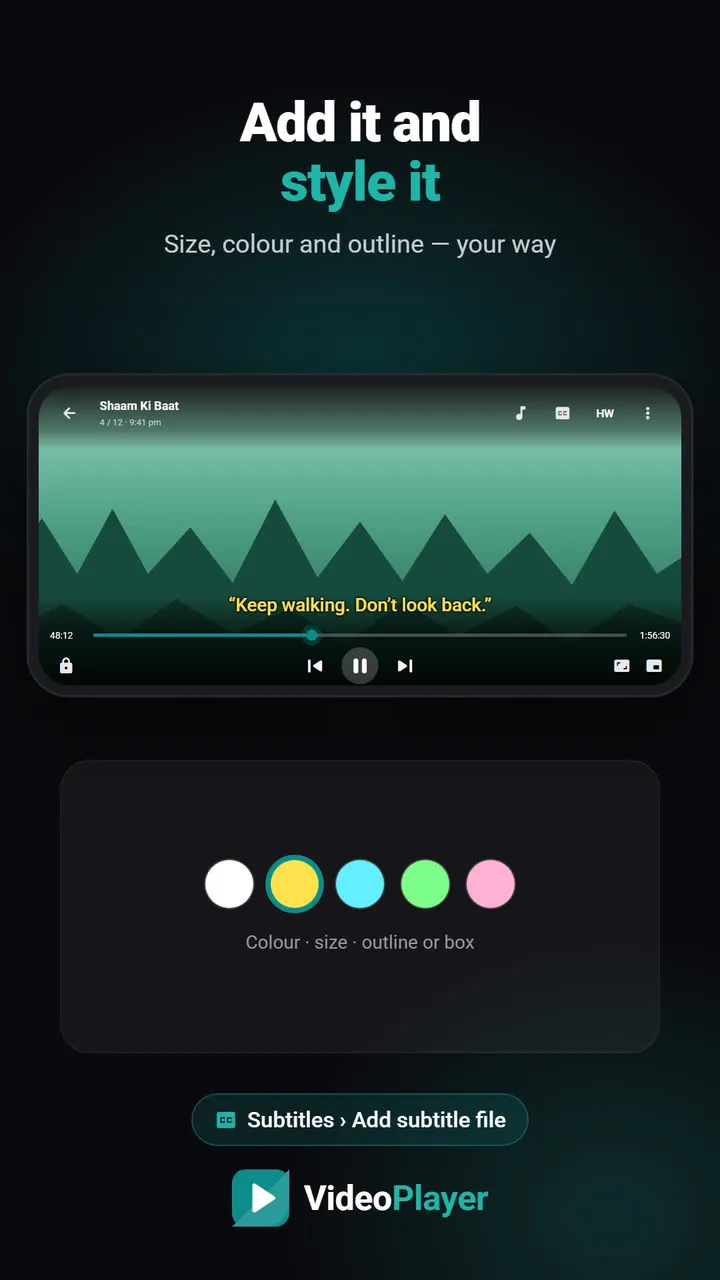
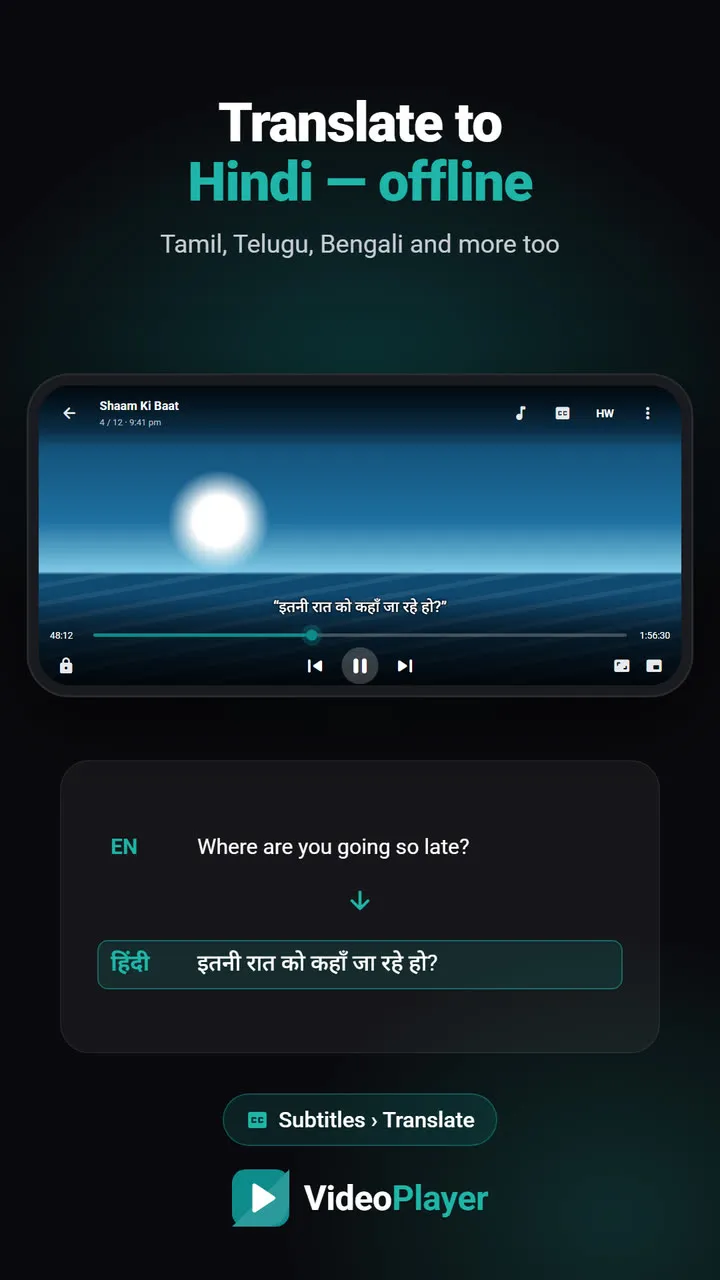
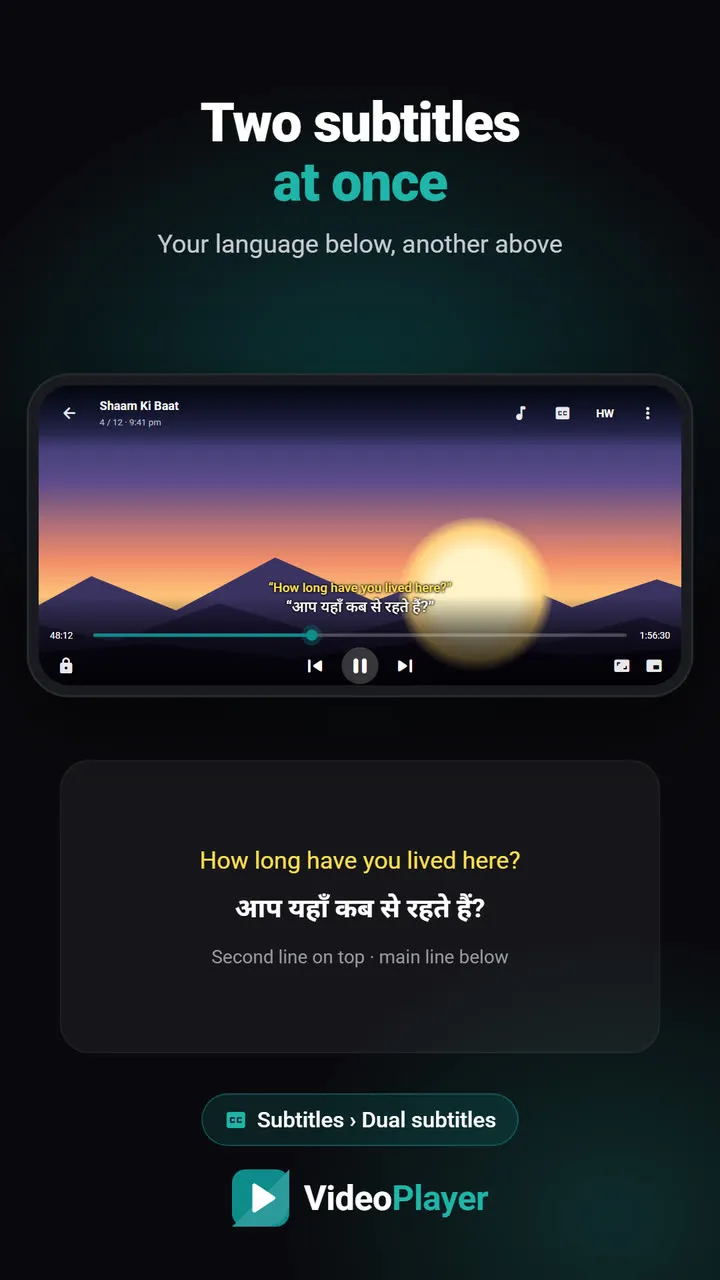
VideoPlayer reads ASS files directly and applies your own subtitle size to them, so most anime looks fine without converting. It can also translate the subtitles into Hindi. If you’re after the full typesetting, the desktop editor Aegisub is where ASS files are made and edited.
Frequently asked questions
How do I convert ASS to SRT?
Does ASS to SRT conversion keep italics?
Can I convert SSA files too?
Why convert ASS to SRT for my TV?
Try it on your own videos
VideoPlayer is free, has no ads and needs no account. Every feature in this guide works offline.
Free tools
Subtitle sync tool
Move every line earlier or later, or fix subtitles that slowly drift.
Open tool →SRT ⇄ VTT converter
SRT to VTT, VTT to SRT, and ASS to either — in your browser.
Open tool →Encoding fixer
é and ?? back to real letters, saved as UTF-8.
Open tool →Video codec checker
See a file’s codecs and if it plays — before you copy it.
Open tool →Subtitle FPS converter
Lines drift later and later? Change the frame rate.
Open tool →Subtitle cleaner
Strip [MUSIC], (laughs) and “Subtitles by…” lines.
Open tool →