Dual Subtitles: How to Show Two Subtitle Languages at Once
Watching films is one of the best ways to pick up a language — but with one subtitle you either understand everything (your language) or miss half of it (the language you’re learning). Dual subtitles solve that: the line in your language at the bottom, the same line in the other language right above it. VideoPlayer can show both at once.
How to turn on dual subtitles
- Choose your main subtitle track with the CC button (for example Hindi).
- Under Sync & tools, tap Dual subtitles.
- Pick the second language from the list (for example English).
The second line appears above the main one, a little smaller and in a soft yellow so your eyes can tell them apart at a glance. Choose Off to go back to one line.
Where the second subtitle can come from
- Another track in the video. Many MKV files carry several subtitle tracks — English, Hindi, Arabic, and so on.
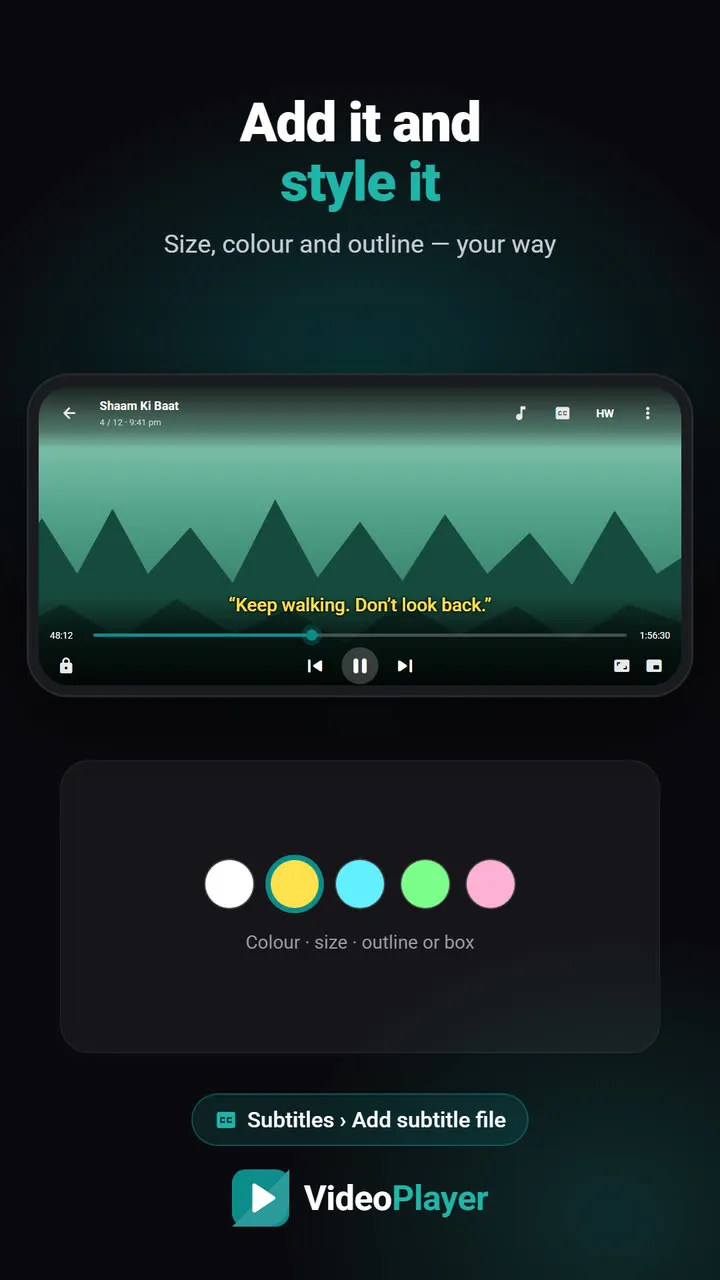
- A file you added. Add a second .srt with Add subtitle file, then pick it as the second line.
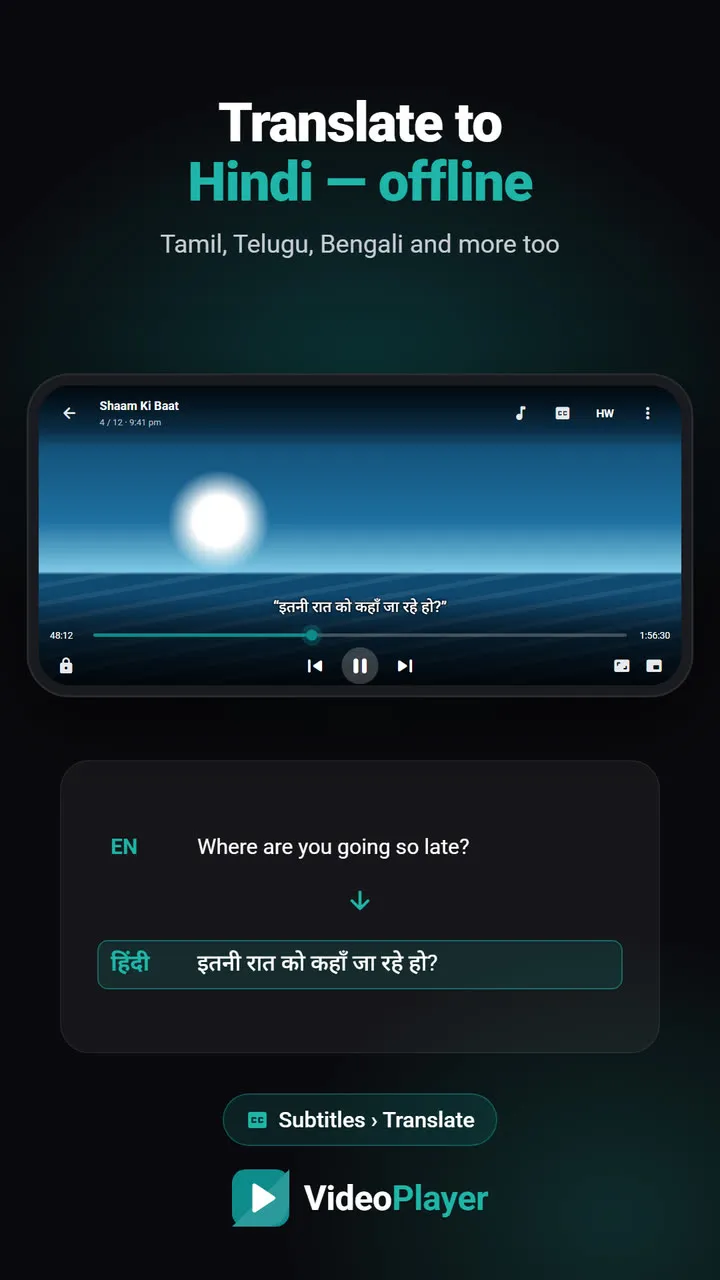
- A translation. If there’s only one subtitle track, translate it and choose Original text as the second line — the translation goes below, the original above.
Using dual subtitles to learn a language
A few habits that make dual subtitles genuinely useful rather than just busy:
- Put the language you’re learning on top and read it first; glance down only when you’re stuck.
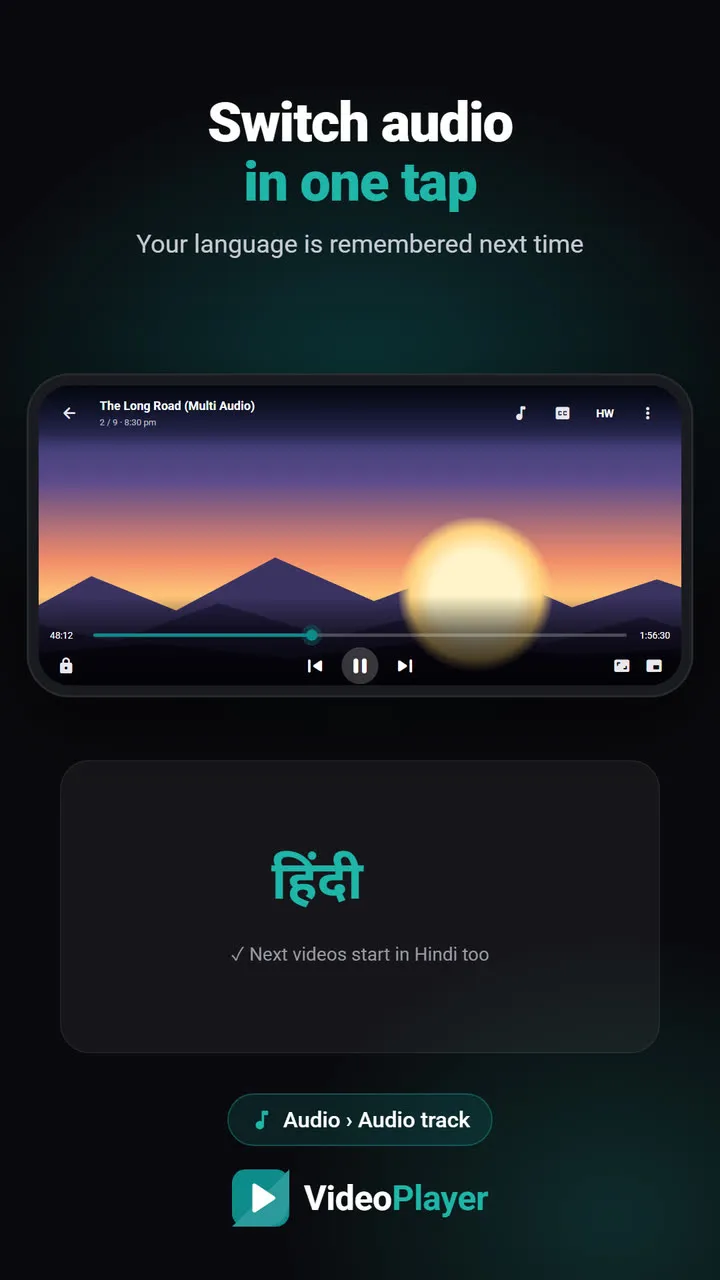
- Play the original audio. Hearing the words while reading them is where the learning happens. Switch the audio with the audio track menu.
- Slow down a little. 0.85x speed keeps voices natural and gives you time to read both lines — see playback speed.
- Repeat a hard line with A-B repeat until you can say it yourself.
- Look up a word later with dialogue search — every line that uses it, in order.
Dual subtitles for mixed-language families
Dual subtitles aren’t only for learners. In homes where one person reads English best and another reads Hindi best, two lines mean nobody has to ask “what did he say?” halfway through the film.
Good to know
- Timing: the second line follows its own track’s timing. If one track is late, sync the main track and pick a second track that matches the same video version.
- Style: size and outline follow your subtitle style settings; the second line is automatically 80% size.
- Picture-based subtitles (PGS) can’t be used as a second line because they aren’t text.
Keep dual subtitles easy to read
Two lines of text take up more of the picture, so a few adjustments help:
- Size down one step in the subtitle style settings. Two medium lines are easier to read than two large ones.
- Turn on the background box if the film has bright scenes — white text on snow or sky disappears without it.
- Watch in landscape. There is far more room for dual subtitles across a wide screen.
- Read the language you know less first. Glance at the other line only when you get stuck; that’s how dual subtitles teach rather than distract.
Research on watching foreign-language video with subtitles is summarised in this Wikipedia section on subtitles and language learning.
Frequently asked questions
How do I show dual subtitles at the same time?
What if my video has only one subtitle language?
Can I use a downloaded .srt as the second subtitle?
Are dual subtitles good for learning English?
Try it on your own videos
VideoPlayer is free, has no ads and needs no account. Every feature in this guide works offline.