Fix Subtitle Encoding — Turn Garbled Letters Back Into Text
You load a subtitle and instead of words you get é, नमसà¥à¤¤à¥‡, empty boxes or rows of question marks. The text is fine — it was simply saved in one subtitle encoding and read as another. This tool reads the file the right way, shows you a live preview and saves a clean UTF-8 copy that every modern player and TV understands. Nothing is uploaded.
Read as: —
🔒 Runs in your browser — your file is never uploaded.
How to fix subtitle encoding
- Choose the subtitle file in the box above. (Pasting works for “é”-style text, but a file gives the best result.)
- Look at the preview. If the letters look right, you’re done — the tool already detected it.
- If not, change Original encoding. Try the one for the subtitle’s language from the table below; the preview updates instantly.
- Tap Download to save a UTF-8 file. Keep “Add BOM” ticked if the file is for a TV or an older player.
Which subtitle encoding to pick
| Subtitle language | Try this encoding |
|---|---|
| English, Spanish, French, Portuguese, German | Windows-1252 |
| Arabic, Urdu, Persian | Windows-1256 |
| Russian, Ukrainian, Bulgarian | Windows-1251 |
| Polish, Czech, Hungarian, Romanian | Windows-1250 |
| Turkish | Windows-1254 |
| Greek / Hebrew / Thai | Windows-1253 / 1255 / 874 |
| Chinese (Simplified / Traditional) | GB18030 / Big5 |
| Japanese / Korean | Shift_JIS / EUC-KR |
Hindi subtitles that look like “नम”
Hindi, Tamil, Telugu and other Indian-language subtitles are almost always UTF-8 already. When they show up as ठand ॠsequences, the file was opened as Windows-1252 somewhere along the way and saved again — the bytes got “translated” twice. The tool spots this pattern and reverses it automatically; the message under the preview tells you when it did.
If Hindi letters appear as separate pieces (matras floating next to the letter), that’s a font problem in the player, not the subtitle encoding — a player with proper Indian-script support fixes it.
Question marks that won’t go away
If the file shows plain ? marks instead of letters in every encoding you try, the letters were already lost: someone saved it in an encoding that couldn’t hold that script, and the editor replaced each character with a question mark. No subtitle encoding setting can bring them back. Download the subtitle again from its source, and this time keep the original file.
Why UTF-8 with BOM?
UTF-8 can store every script in one file, so it’s the safest choice. Some smart TVs and older media players only recognise UTF-8 if the file starts with a small invisible marker called a BOM; that’s what the checkbox adds. Phones and computers read it either way.
Subtitle encoding on Android
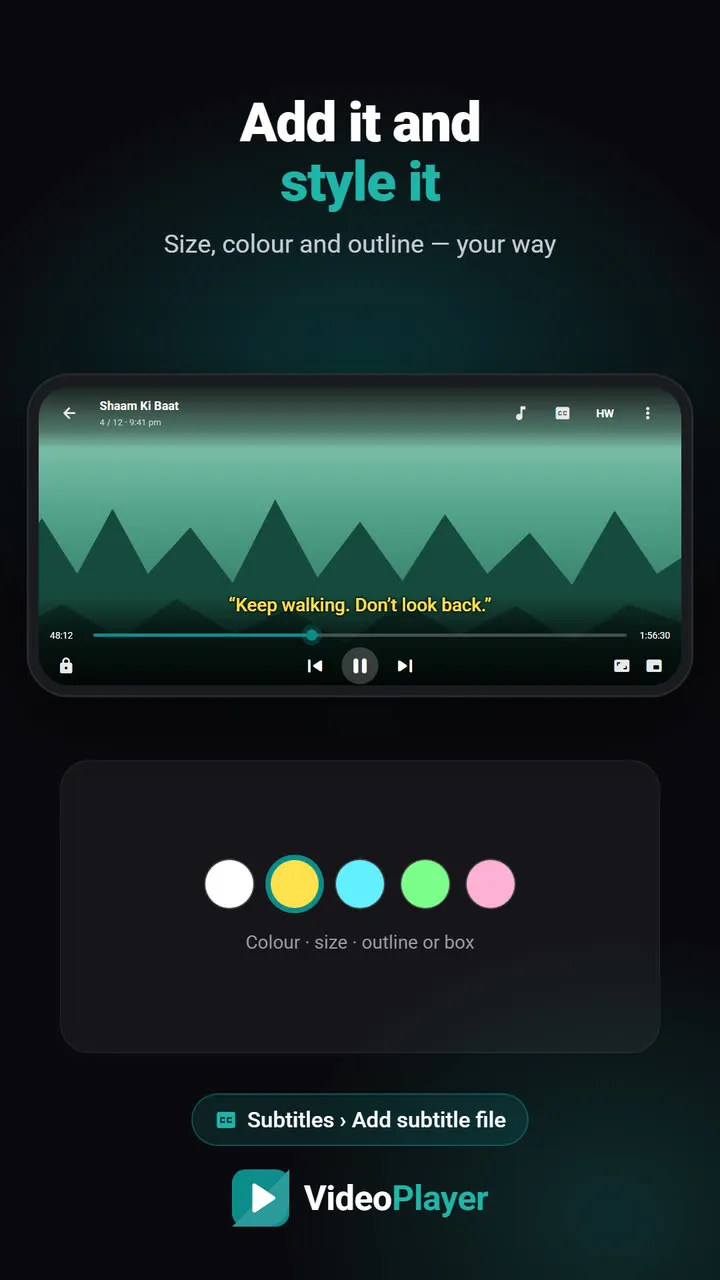
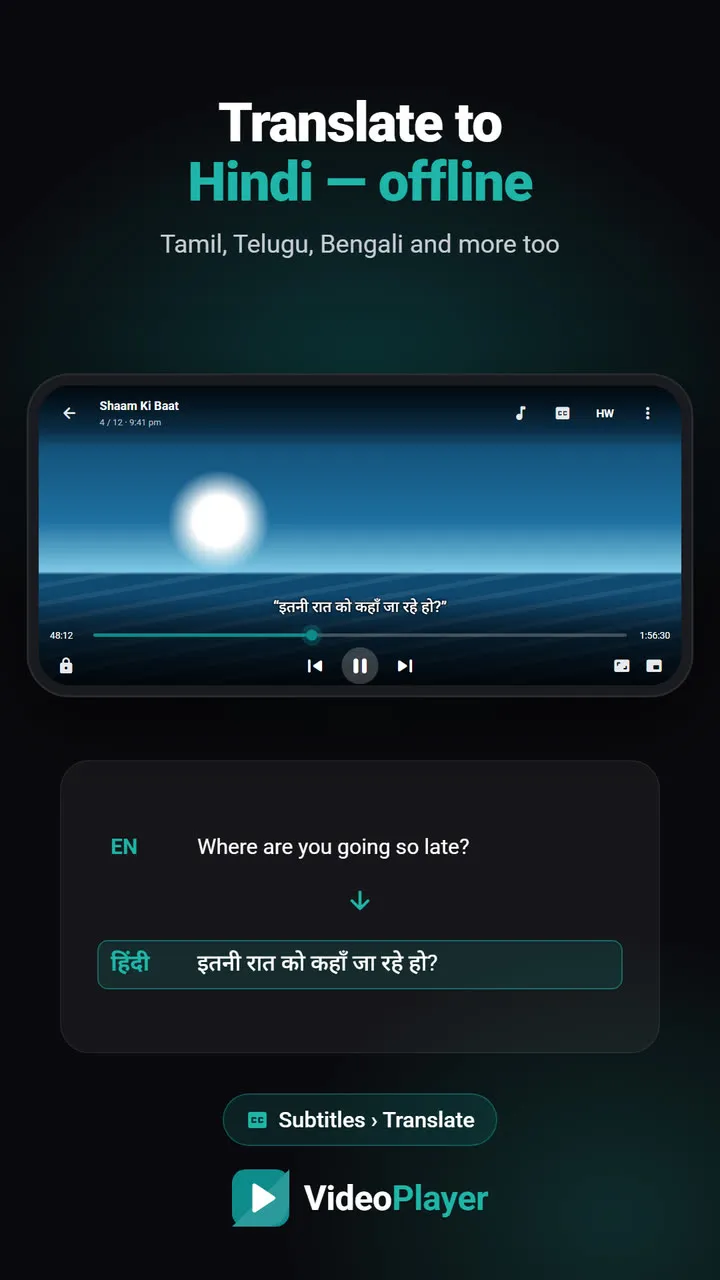
VideoPlayer reads UTF-8 and UTF-16 subtitles when you add a subtitle to a video, and draws Hindi and other Indian scripts properly. Files in an older subtitle encoding should go through this tool first — after that they show correctly in the app and on any TV. Once the text is clean you can also translate it to Hindi on the phone.
Fixed the letters but the timing is off? Use the subtitle sync tool, or change the format with the SRT to VTT converter.
This kind of garbled text even has a name — Wikipedia explains mojibake and why it happens.
Frequently asked questions
How do I fix subtitle encoding?
Why does my subtitle show é or �
Which subtitle encoding should I use?
Is my file uploaded?
Try it on your own videos
VideoPlayer is free, has no ads and needs no account. Every feature in this guide works offline.
Free tools
Subtitle sync tool
Move every line earlier or later, or fix subtitles that slowly drift.
Open tool →SRT ⇄ VTT converter
SRT to VTT, VTT to SRT, and ASS to either — in your browser.
Open tool →