Remember the Audio Language for Each Series — Pick It Once
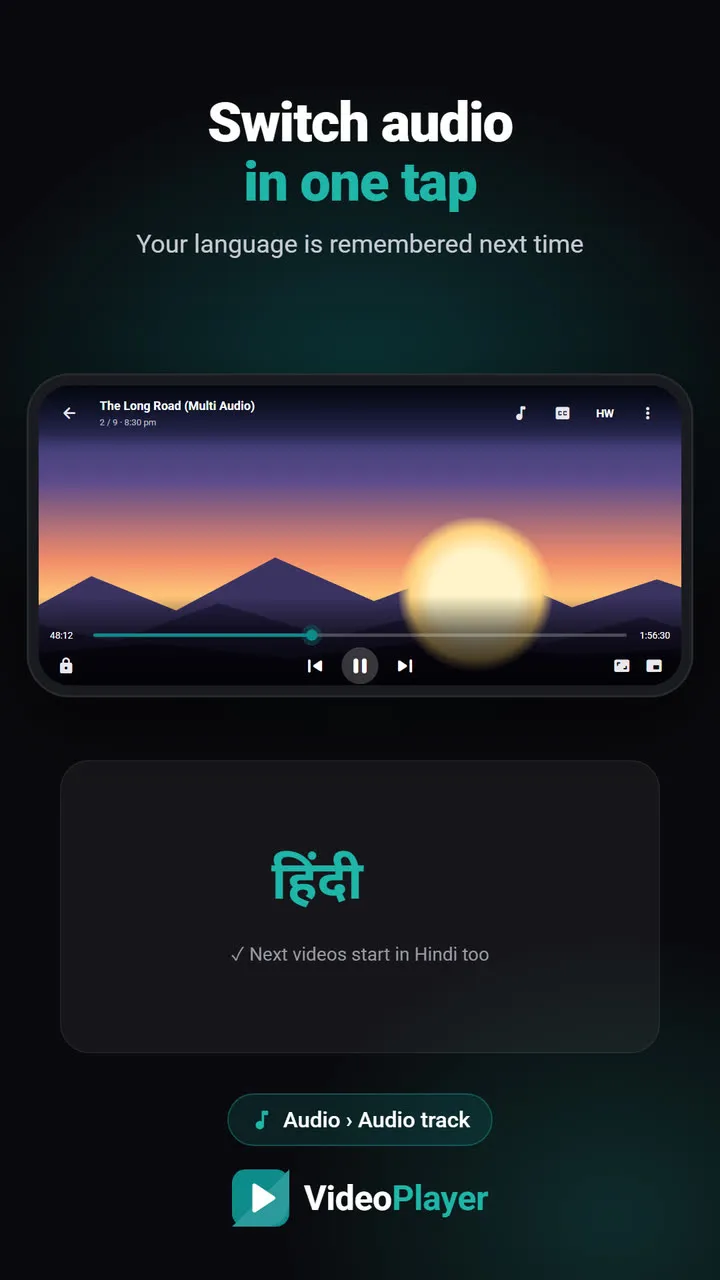
Episode one: open the audio menu, pick Hindi. Episode two: open the audio menu, pick Hindi again. By episode six you’re wondering why the player can’t just remember. VideoPlayer does — it keeps the audio language and subtitle choice for every series folder separately, so each episode starts exactly the way you left the last one.
How audio language memory works
When you choose an audio track or a subtitle track, VideoPlayer saves two things:
- Your last choice overall — used for any video that doesn’t belong to a folder you’ve set yet.
- The choice for that folder — because the episodes of a series almost always live together in one folder.
When the next episode starts, the player looks up the folder first. If you’ve picked something there, it uses that; otherwise it uses your last choice. Nothing to set up, no settings page — it just happens.
Why per-series audio language matters
Different shows need different settings, and a single global “preferred language” can’t handle that:
| Folder | Audio | Subtitles |
|---|---|---|
| Bollywood movies | Hindi | Off |
| Korean drama | Korean | English |
| Hollywood series (dual audio) | English | Hindi (translated) |
| Kids’ cartoons | Hindi | Off |
With VideoPlayer each folder keeps its own row from this table. Switch between shows in the same evening and each one opens correctly.
How to set the audio language for a series
- Open any episode from the series folder.
- Tap the music-note button and pick the language under Audio track.
- Optionally tap CC and pick a subtitle track (or Off).
That’s it. Every other episode in that folder now starts with those choices — including episodes you download later into the same folder.
Good to know
- If an episode doesn’t have that language, VideoPlayer falls back to the file’s default track instead of playing silence.
- Back to automatic: choose Automatic in the audio list to let each file decide again.
- Works with streams too? Network links have no folder, so they use your last overall choice.
- Nothing leaves your phone. Language choices are stored in the app’s own storage.
Pair it with the other series features
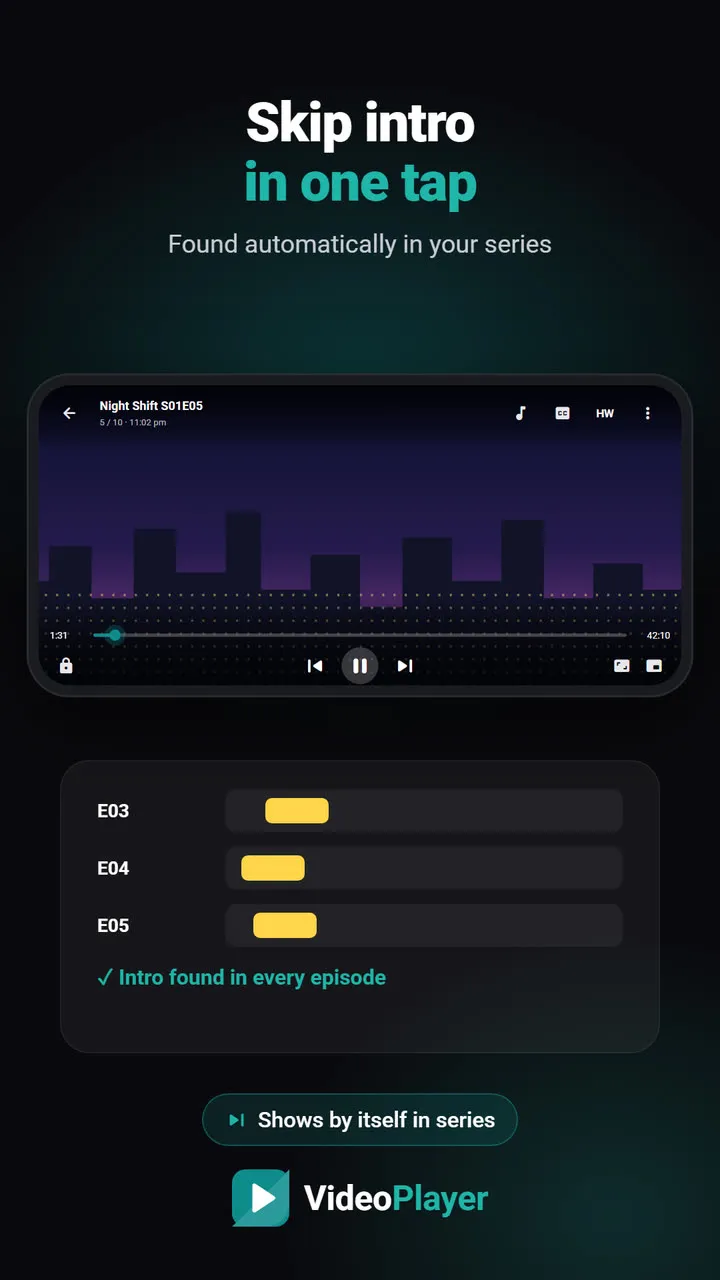
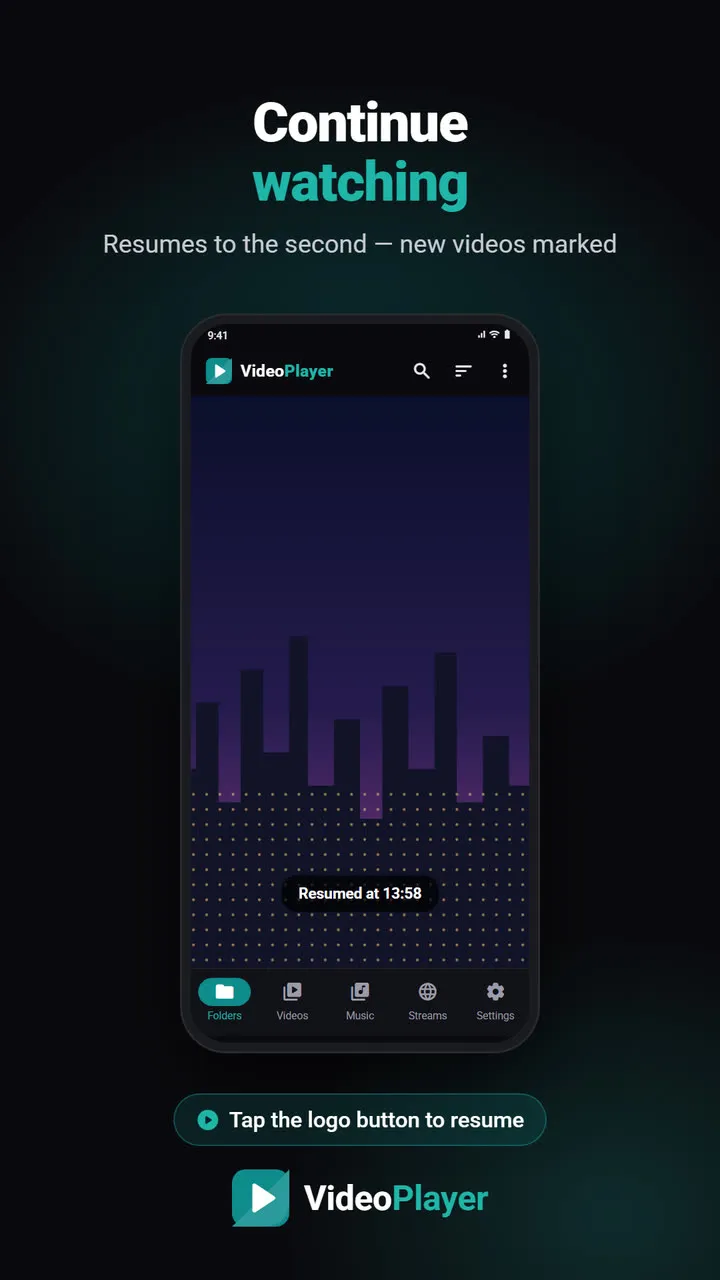
Language memory is one of three things that make binge-watching smoother in VideoPlayer. Skip intro finds the opening theme of a series and offers a one-tap skip, and Continue watching brings you back to the exact second you stopped. If the episodes are dual audio, read how to change the audio language for the details of the track list.
Reading audio language codes in the track list
Track lists often show short codes instead of full names. Here is what the common ones mean, so you can pick the right audio language the first time:
| Code | Audio language |
|---|---|
| hin | Hindi |
| eng | English |
| tam / tel | Tamil / Telugu |
| mal / kan | Malayalam / Kannada |
| jpn / kor | Japanese / Korean |
| und | Not labelled by the file |
If a track says Unknown or und, the person who made the file didn’t label it. Play a few seconds of each track to find yours — once you choose, the audio language is remembered for the rest of the series anyway.
Android’s own approach to app data is explained in the Android data storage guide — VideoPlayer keeps these choices in its private app storage.
Frequently asked questions
How do I set a default audio language for a series?
Will the audio language apply to new episodes I download later?
Can one series use subtitles and another not?
What happens if an episode doesn’t have the language I chose?
Try it on your own videos
VideoPlayer is free, has no ads and needs no account. Every feature in this guide works offline.