How to Add Subtitles to a Video on Android — and Style Them
You’ve found the perfect subtitle file for the film — Movie.en.srt sitting in Downloads — and now you need the player to actually use it. In VideoPlayer you can add subtitles to any video in two taps, and often you don’t even need to: if the file is named like the video and sits in the same folder, it loads by itself.
How to add subtitles to a video
- Play the video and tap the CC button.
- Tap Add subtitle file.
- Pick the file — SRT, ASS, SSA, VTT, TTML or DFXP.
The subtitle switches on immediately and the video carries on from the same moment. A short message confirms which file was added.
Automatic: name it like the video
VideoPlayer looks next to every video for subtitle files with the same name. If your video is Night Train.mkv, any of these load automatically:
- Night Train.srt
- Night Train.en.srt, Night Train.hi.srt — handy for several languages
- Night Train.ass or .vtt
Put them in the same folder and they appear in the CC list, ready to pick. This is the easiest way to add subtitles to a whole series at once.
Make the subtitles easy to read
Under Style in the same panel, with a live preview:
- Size: 50% to 220%. Bigger for TVs and older eyes, smaller for long lines.
- Colour: white, yellow, cyan, green or pink. Yellow stays readable on bright scenes.
- Background: none, outline (best for most videos) or a dark box (best on very busy pictures).
Your style applies to every video, including subtitles built into MKV files.
After you add subtitles
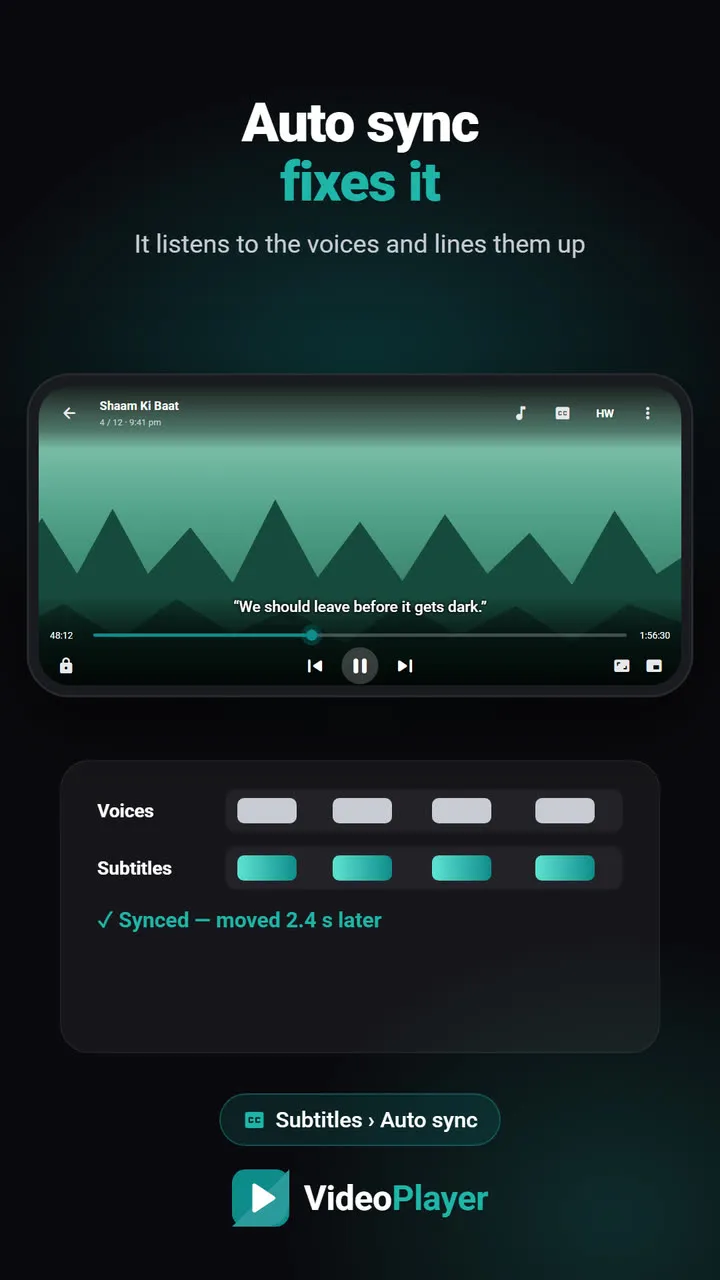
- Out of sync? Tap Auto sync — it listens to the voices and fixes the timing.
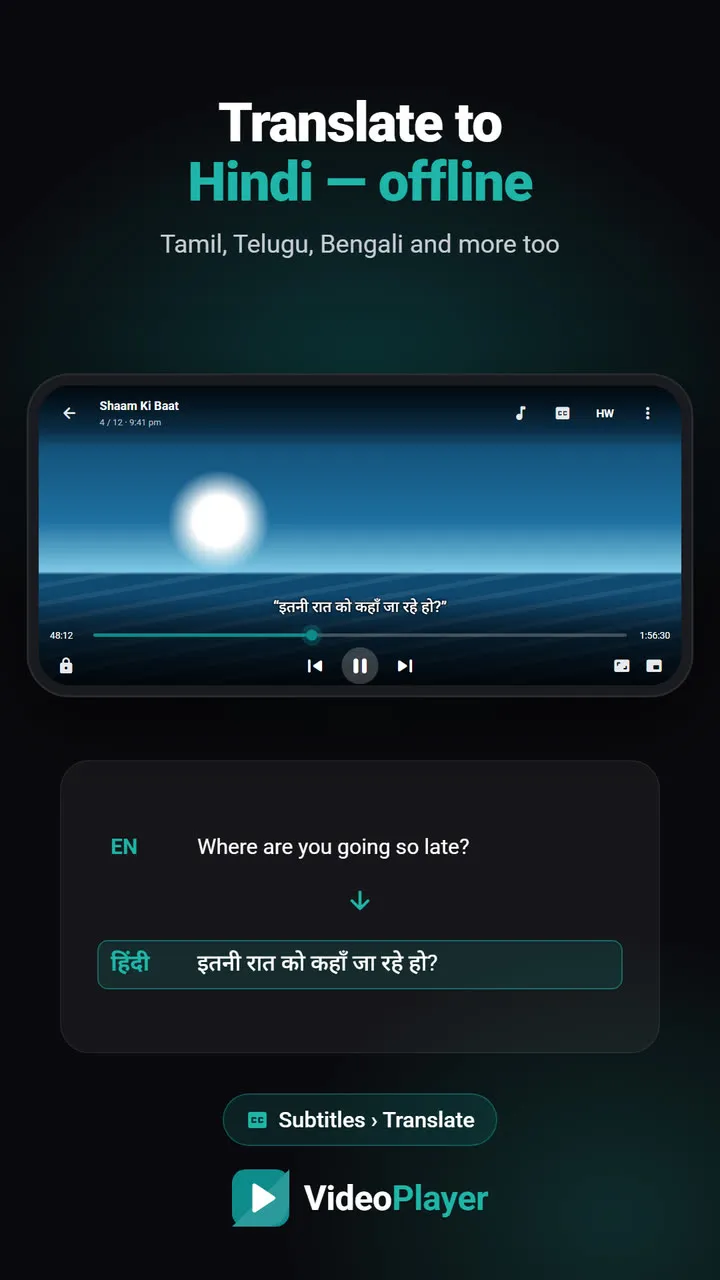
- Wrong language? Translate it to Hindi or another language, offline.
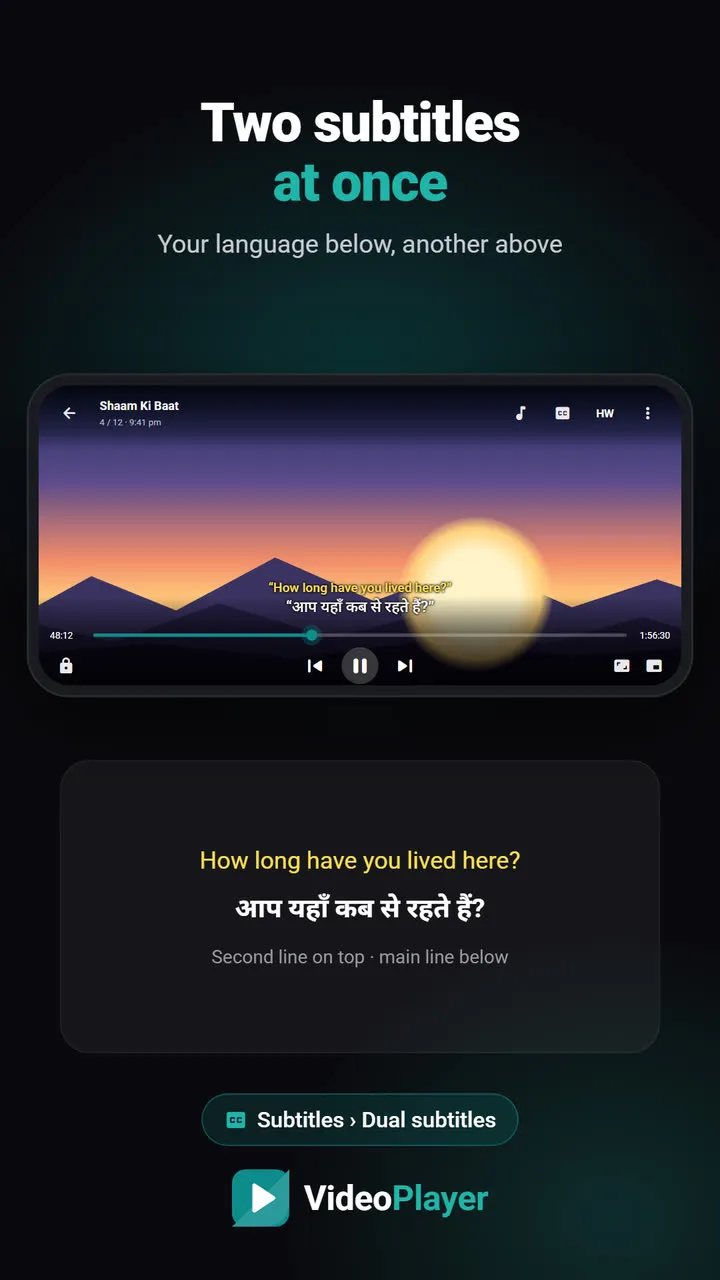
- Want two languages? Add a second file and show dual subtitles.
- No subtitle file exists? Make one with AI subtitles.
Which subtitle formats can you add?
| Format | Notes |
|---|---|
| SRT (SubRip) | The most common. Plain text with times. |
| ASS / SSA | Anime favourite. Styled text is shown in your chosen style. |
| VTT (WebVTT) | Common for web videos and courses. |
| TTML / DFXP | Used by some streaming downloads. |
Hindi and other Indian-language subtitle files in UTF-8 display correctly. If you see strange symbols instead of Devanagari, the file is in an old encoding; re-saving it as UTF-8 in any text editor fixes it.
Pick a subtitle file that matches your video
Subtitle files are timed to one particular release of a film — a WEB-DL, a BluRay rip, a TV recording. A file made for a different release can be seconds off or drift as the film goes on. Before you add subtitles, look at the names: if your video says WEB-DL 1080p, pick a subtitle that says the same.
If the only file you can find is slightly off, add it anyway and use auto sync to line it up with the speech. And if strange characters like é appear, the file is saved in an old text encoding; re-save it as UTF-8 in any text editor and add it again — or let our free subtitle encoding fixer do it in a few seconds.
The SRT format is described in detail on Wikipedia’s SubRip page.
Frequently asked questions
How do I add subtitles to a video on Android?
Why doesn’t my subtitle file load automatically?
How do I make subtitles bigger?
The subtitles I added are late. How do I fix that?
Try it on your own videos
VideoPlayer is free, has no ads and needs no account. Every feature in this guide works offline.