MKV No Sound on Android: 5 Fixes, Easiest First
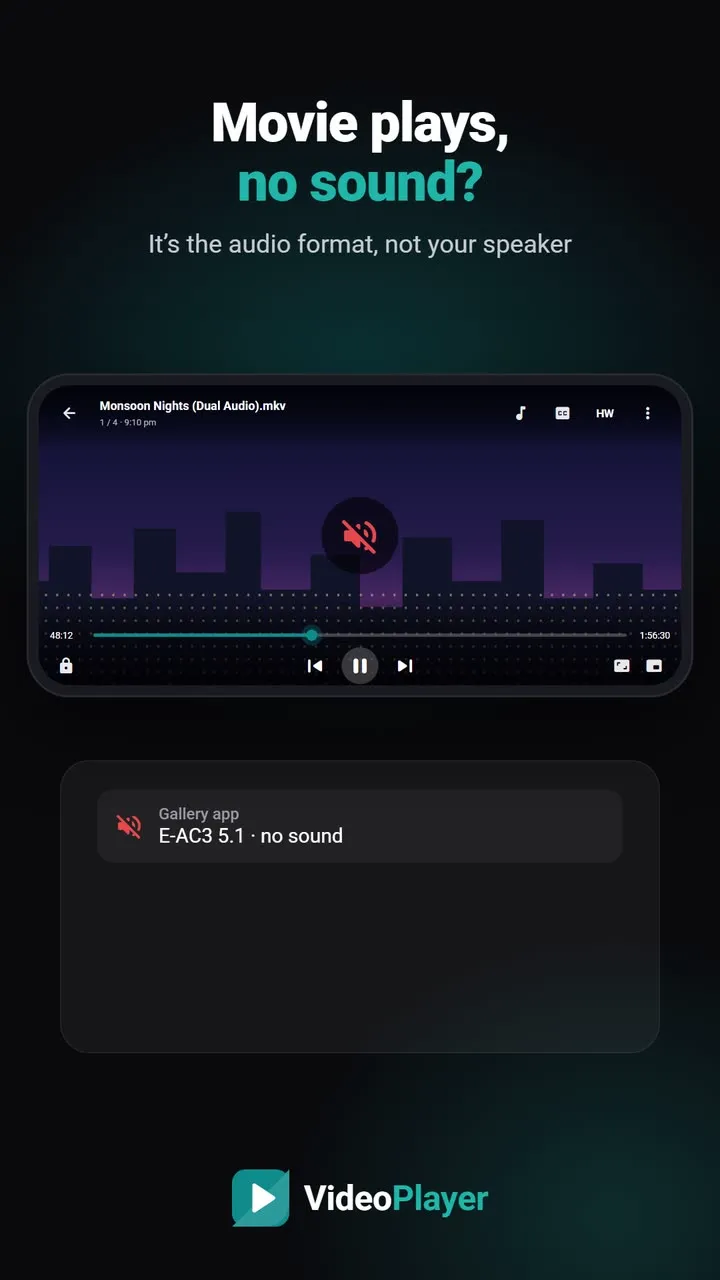
The movie starts, the picture looks perfect, and there is no sound at all. MKV no sound is one of the most common video problems on Android, and the good news is that your phone’s speaker is almost never the cause. In nine cases out of ten the file uses an audio format your player can’t decode. Below are five fixes, easiest first, so you can stop at the one that works.
Why MKV no sound happens
An MKV file is a box. Inside sit a video stream, one or more audio streams and sometimes subtitles. The box itself is fine — Android opens it — but each stream inside is packed with a codec. If the player has no decoder for the audio codec, it plays the picture and quietly skips the sound.
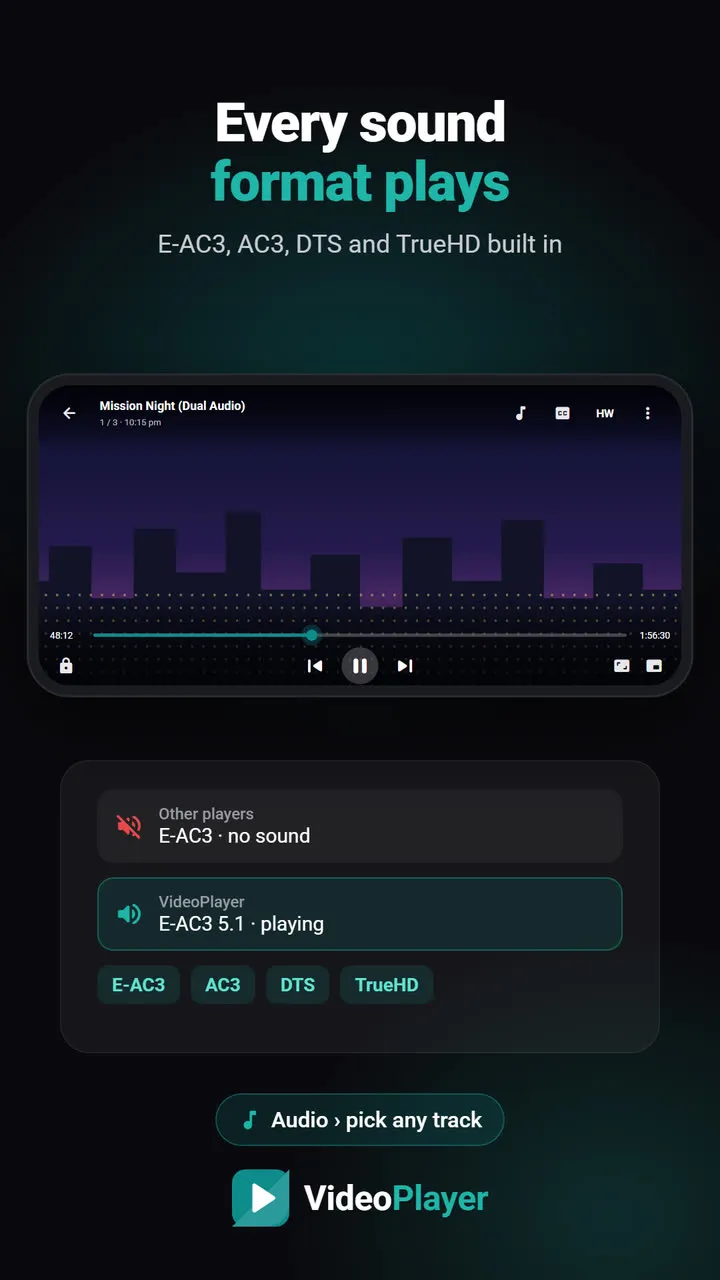
Downloaded films, especially dual-audio ones, often carry Dolby Digital (AC3), Dolby Digital Plus (E-AC3) or DTS sound. Those formats need a licence, so many phones and popular players leave them out. That is why the same file has sound on a laptop and none on your phone.
Fix 1: Check the audio track first
Open the audio menu in your player and look at the track list. Dual-audio movies have two or three tracks, and the first one is not always the one you want. Some players also have an “Off” option that can get picked by accident.
In VideoPlayer, tap the ♪ button at the top of the player. You will see every track with its language and format, for example “Hindi · 5.1 · E-AC3”. Pick another track and listen. If one track plays and another stays silent, the silent one uses a codec your current player lacks — go to fix 2.
Fix 2: Use a player that decodes E-AC3, AC3 and DTS
This solves most MKV no sound cases. Your phone’s gallery app usually can’t decode Dolby or DTS, and MX Player’s Play Store version needs a separate “custom codec” download for them. A player with the decoders built in plays the same file with sound straight away.
VideoPlayer ships with FFmpeg audio decoders for E-AC3, AC3, DTS, TrueHD, FLAC, Opus and more, so nothing extra has to be installed. Our guide to the “E-AC3 audio not supported” error explains the licensing story in detail.
Fix 3: Switch to the software audio decoder
Sometimes the phone claims it can play a format and then fails. You hear nothing, or the sound crackles and drops. The fix is to skip the phone’s own decoder and let the app do the work.
In VideoPlayer open the audio menu and turn on Software audio decoder. The app then decodes the sound with FFmpeg instead of the phone’s chip. The setting is remembered, so you can turn it off again once that film is done.
Fix 4: Rule out volume, mute and Bluetooth
It sounds obvious, but it catches everyone once. Check these quickly:
- Press the volume-up key while the video plays, so you change the media volume and not the ringer.
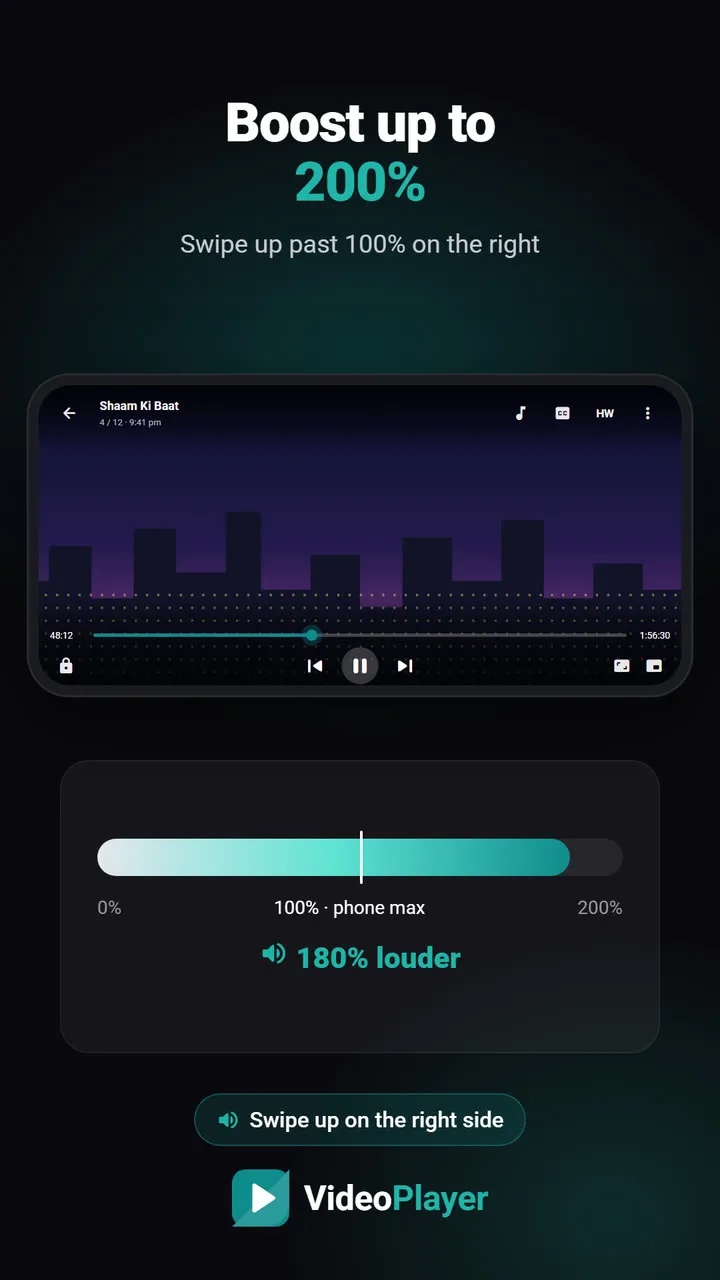
- Look for a mute button in the player. In VideoPlayer the audio menu has its own volume slider that goes up to 200%.
- Bluetooth earbuds in your pocket may still be connected and playing the sound. Turn Bluetooth off for a moment and try again.
If other videos play with sound and only this MKV is silent, the cause is in the file, not the settings.
Fix 5: Check the file itself
Our free video codec checker reads the file in your browser and lists every audio track with its format. Nothing is uploaded. If it shows a track as “not supported”, no Android player will help — convert that file on a computer instead. If the file is a half-finished download, the audio may simply be missing; download it again.
MKV no sound: quick checklist
| What you see | Most likely cause | Fix |
|---|---|---|
| No sound on one track, sound on another | Unsupported codec on that track | Fix 2 |
| “Audio format not supported” message | E-AC3, AC3 or DTS | Fix 2 |
| Crackling, or sound cuts out | Phone decoder struggling | Fix 3 |
| No sound in any video | Volume, mute or Bluetooth | Fix 4 |
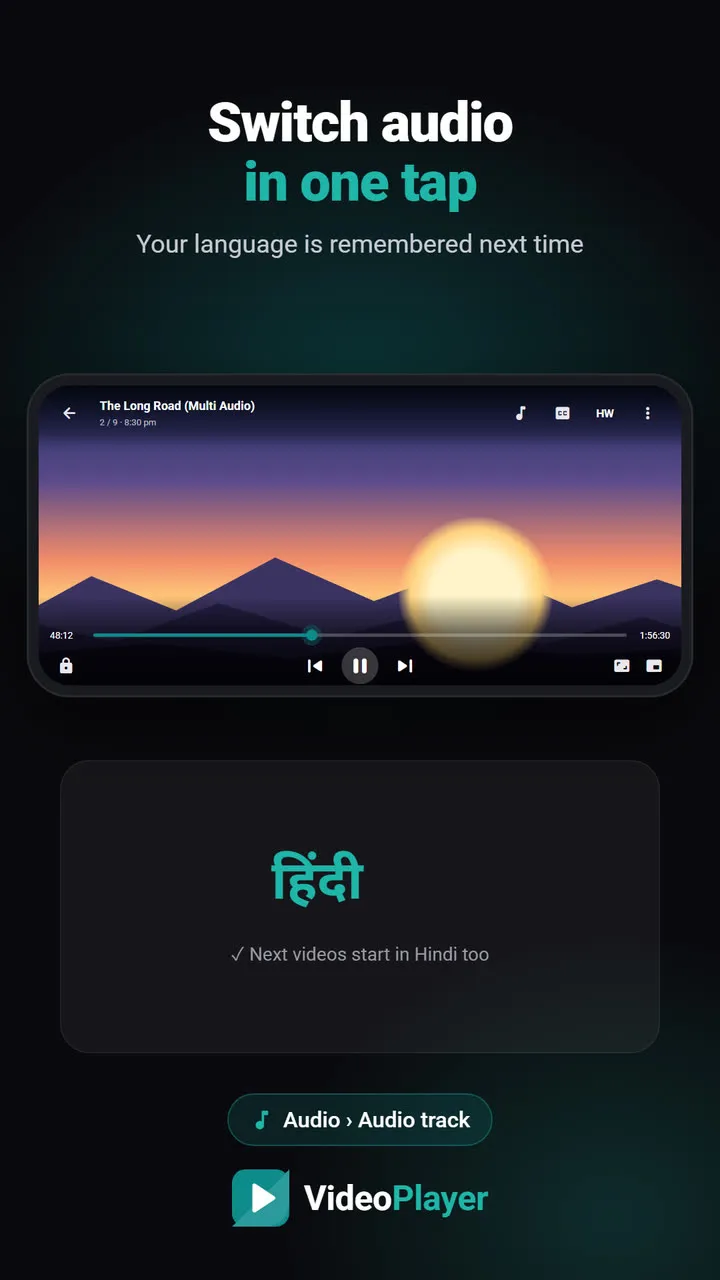
Once the sound works, you can switch between Hindi and English in one tap — see how to change the audio language. Still picking a player? Read our list of the best MKV players for Android.
Want the technical background? The Matroska project explains how an MKV file holds several tracks at once.
Frequently asked questions
Why is there MKV no sound on my phone when the picture plays?
How do I fix MKV no sound without converting the file?
Does MX Player fix MKV no sound?
Can a phone update fix MKV no sound?
Try it on your own videos
VideoPlayer is free, has no ads and needs no account. Every feature in this guide works offline.
Guides
Format not supported
“Can’t play this video”? Find the cause, then play it.
Read the fix →Black screen, sound plays
Hear the movie but can’t see it? Six fixes.
Read the fix →Subtitles not showing
The SRT is right there, but nothing shows? Seven fixes.
Read the fix →Video lagging
Stutter, jerks and frozen frames — eight fixes.
Read the fix →Learn English with movies
Dual subtitles, slower speed, repeat one line — a real method.
Read the fix →Bigger subtitles
Tiny subtitles? Make them big, bright and easy to read.
Read the fix →