Subtitle Size on Android: Make Subtitles Bigger and Clearer
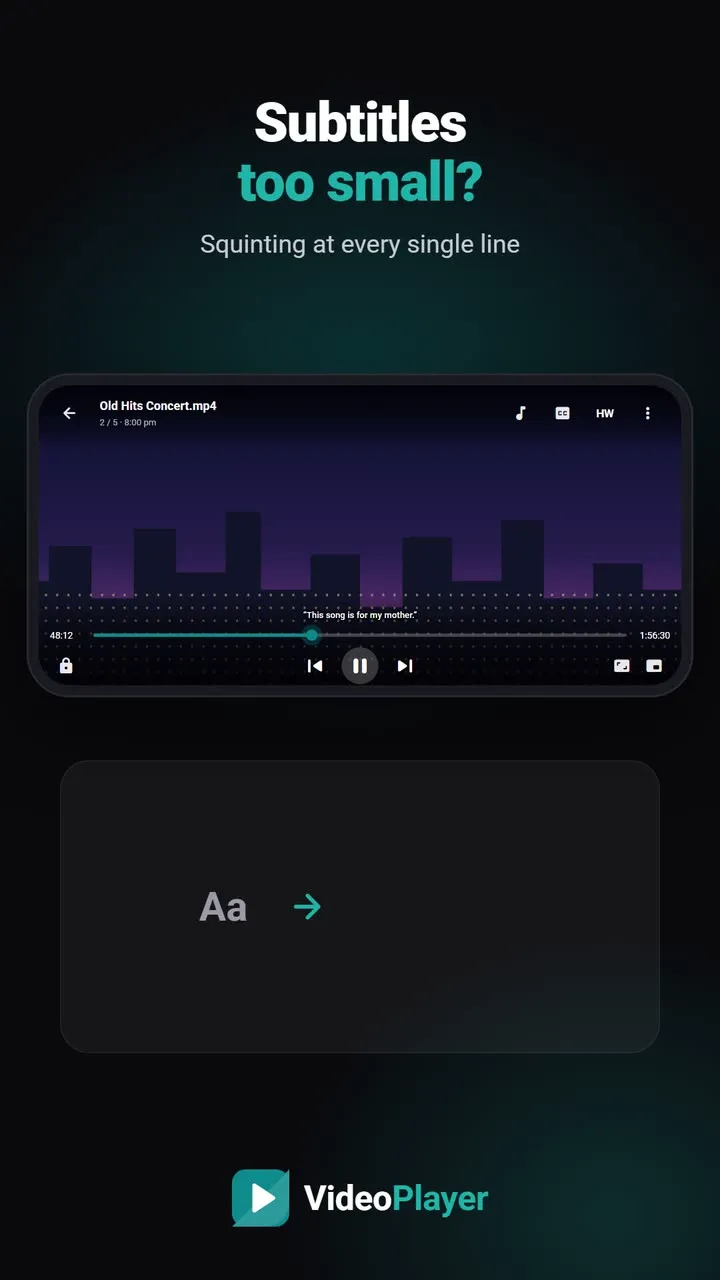
Subtitles that look fine on a TV become tiny on a phone. Hold it a little further away, show it to a parent, or watch on a smaller screen, and you start squinting at every line. The fix takes ten seconds: change the subtitle size, then pick a colour and background that stand out. Here is how to do it, and which settings work best for different people.
How to change the subtitle size in VideoPlayer
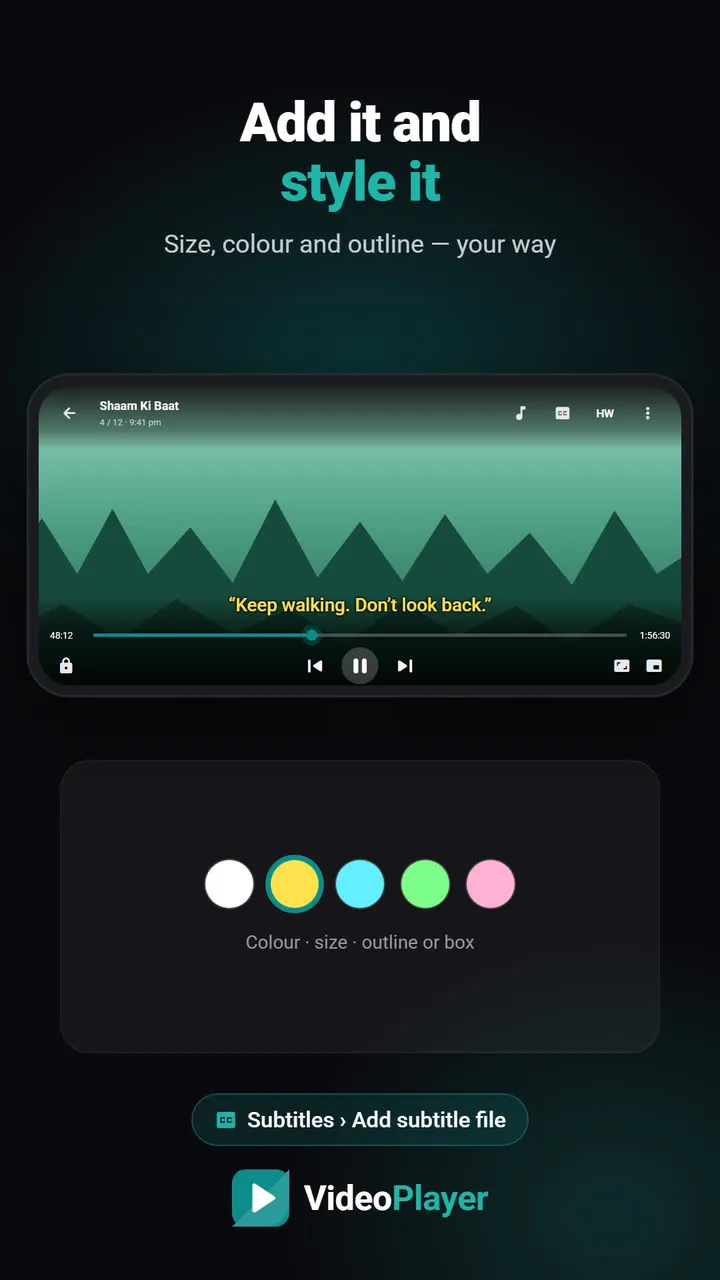
- Play your video and tap the CC button at the top.
- Scroll down to Style. A live preview shows how subtitles will look.
- Drag the Size slider. It goes from 50% to 220%, in 5% steps, and the preview changes as you drag.
The new subtitle size applies at once and is remembered for every video. It works for SRT, VTT and TTML files and for text subtitles built into MKV files. If you haven’t loaded a subtitle yet, see how to add subtitles to a video.
Pick a colour that stands out
Under the size slider there are five colours: white, yellow, cyan, green and pink. White is the classic choice, but yellow is easier to read on bright scenes — snow, sky, white walls — and is what many TV channels use for that reason.
Outline or box: the background matters
The Background option has three choices:
- None — just the text. Clean, but it can disappear on busy scenes.
- Outline — a dark edge around every letter. Readable almost everywhere, still looks light.
- Box — a dark band behind the text. The most readable of all, best for older eyes and very bright films.
The best subtitle size for each situation
| Who / where | Size | Colour | Background |
|---|---|---|---|
| Normal phone, held close | 100–120% | White | Outline |
| Parents and grandparents | 150–180% | Yellow | Box |
| Small phone in portrait | 130–150% | White | Outline |
| Phone on a stand, across the room | 180–220% | Yellow | Box |
| Two subtitle lines at once | 80–100% | White | Outline |
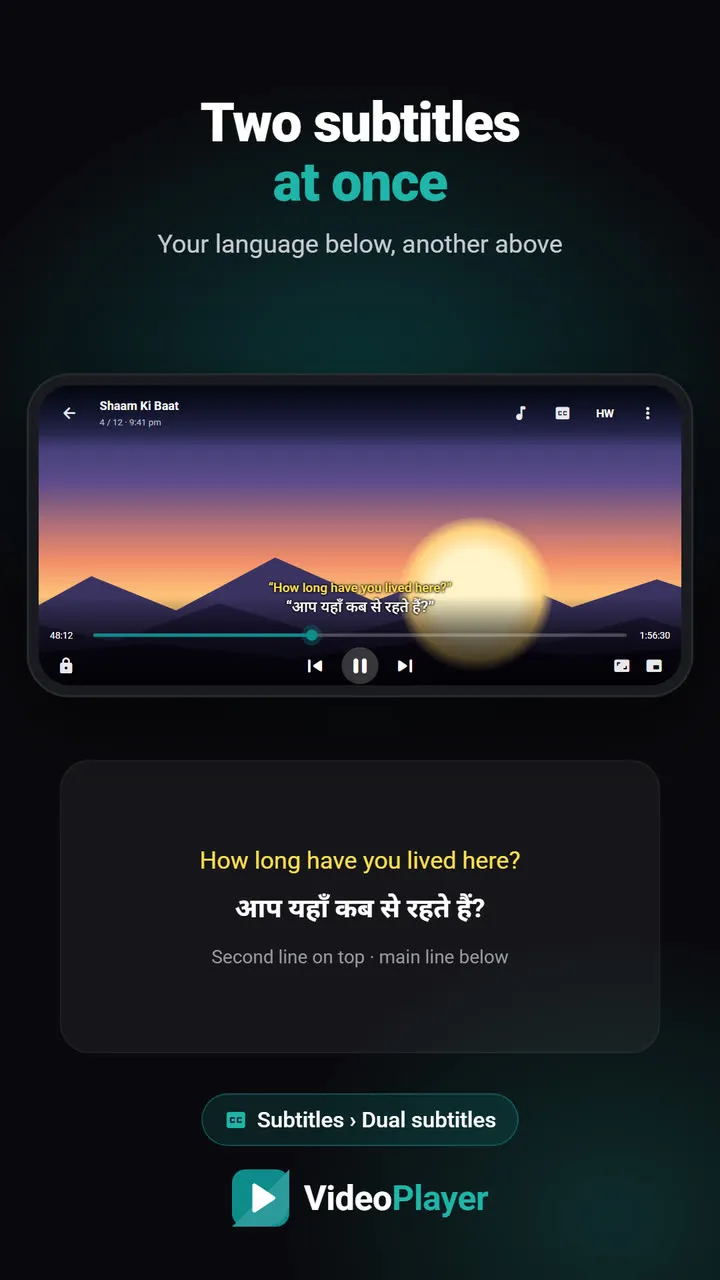
For two languages at once — handy for learning — use a smaller size so both lines fit. Our guide to dual subtitles covers that setup.
Why ASS subtitles also follow your size
ASS and SSA files, common with anime, carry their own font sizes. Many players respect those and ignore your setting, so the text stays tiny. VideoPlayer applies your chosen subtitle size to these files too, so one setting works everywhere.
When the subtitle size can’t change
Blu-ray and DVD subtitles (PGS and VobSub) are pictures, not text. They are shown exactly as they were made, and no player can resize them the same way. If they are too small, look for an SRT version of the subtitle, or let VideoPlayer write AI subtitles from the audio instead.
Other apps: the Android caption setting
Many apps, including YouTube, follow Android’s own caption style. Open Settings → Accessibility → Caption preferences to set a system-wide text size and style. Google’s Android accessibility help lists the steps for each phone brand. Apps with their own subtitle menu, like VideoPlayer, use the in-app subtitle size instead.
Make voices clearer too
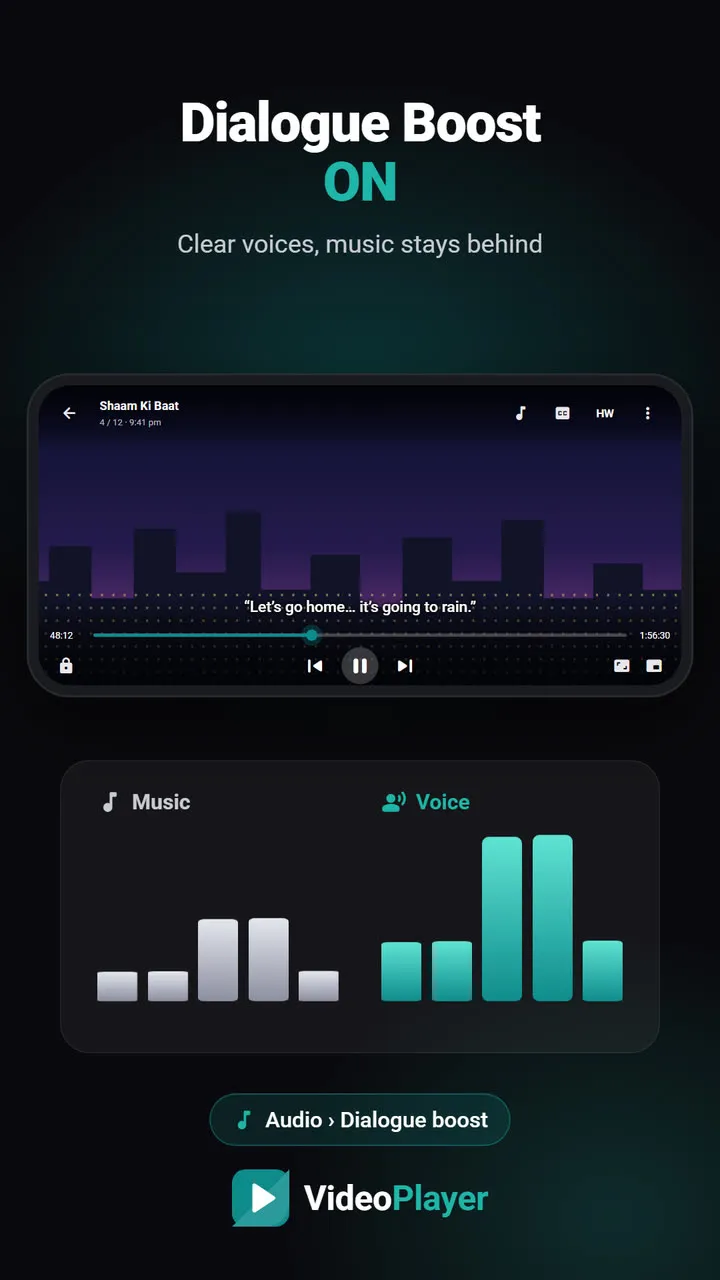
If someone needs big subtitles because voices are hard to hear, also try Dialogue Boost, which lifts speech above music and effects. And if subtitles don’t show at all, read subtitles not showing.
Frequently asked questions
How do I increase the subtitle size on Android?
What is the best subtitle size for older people?
Why doesn’t the subtitle size change for some files?
Is the subtitle size saved for the next video?
Try it on your own videos
VideoPlayer is free, has no ads and needs no account. Every feature in this guide works offline.
Guides
MKV no sound
Picture plays, audio is silent? Five fixes, easiest first.
Read the fix →Format not supported
“Can’t play this video”? Find the cause, then play it.
Read the fix →Black screen, sound plays
Hear the movie but can’t see it? Six fixes.
Read the fix →Subtitles not showing
The SRT is right there, but nothing shows? Seven fixes.
Read the fix →Video lagging
Stutter, jerks and frozen frames — eight fixes.
Read the fix →Learn English with movies
Dual subtitles, slower speed, repeat one line — a real method.
Read the fix →