Video Lagging on Android: 8 Fixes for Smooth Playback
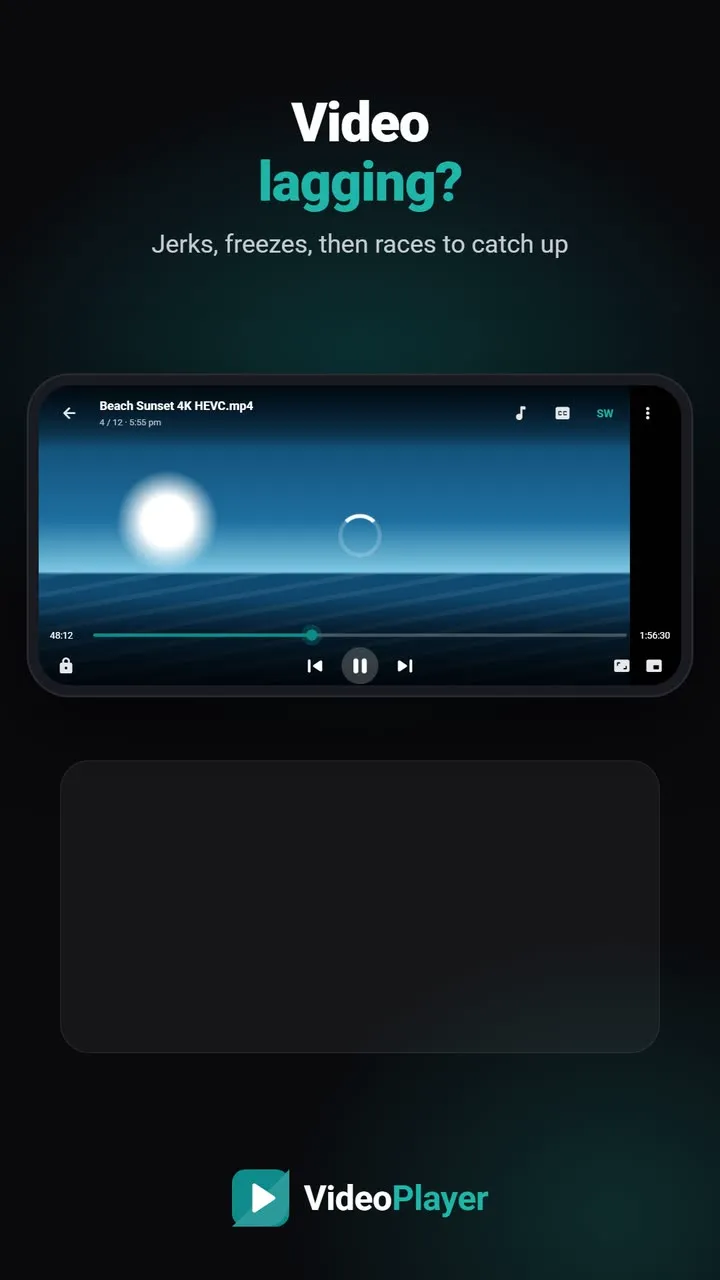
The picture jumps, freezes for half a second, then races to catch up. Video lagging on a phone is frustrating, because the same file often plays smoothly on a laptop. The phone isn’t too weak for video — it’s usually doing the decoding the slow way, or something else is stealing its power. These eight fixes start with the ones that help most.
Why video lagging happens on phones
Every frame of a film has to be decoded before it reaches the screen — 24 to 60 frames every second. Phones have a special video chip that does this using very little power. When the chip is skipped, or when the file is heavier than the chip was built for, the work falls on the main processor. That’s when frames arrive late. 4K, 60 fps, 10-bit HEVC and very high bitrates make it worse.
Fix 1: Use the hardware decoder (HW)
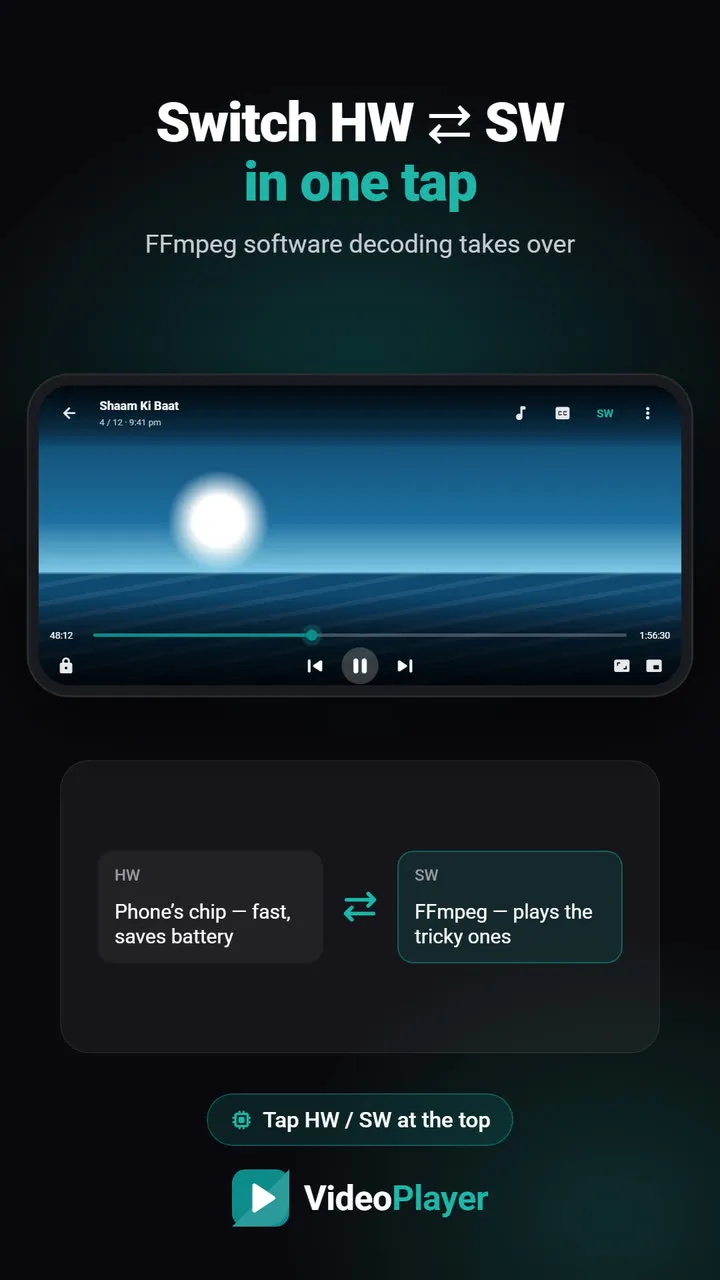
Hardware decoding is the fast path, so check it’s on. In VideoPlayer the button at the top of the player shows HW or SW. If it says SW and the video is lagging, tap it to switch back to HW. Software decoding is great for files the chip can’t open, but it needs much more processing power. Our HW / SW decoder guide explains when to use each.
Fix 2: Find out how heavy the file is
Open the video in our free video codec checker. It shows the codec, resolution and bit depth in seconds, without uploading anything. A 4K 10-bit HEVC film on a phone from 2018 will lag no matter which app you use. A 1080p copy of the same film plays smoothly and uses far less battery.
Fix 3: Turn off battery saver
Battery saver slows the processor down to stretch the charge. That’s fine for chat apps, but it is one of the most common causes of video lagging. Pull down the quick settings, turn battery saver off and play the video again.
Fix 4: Let a hot phone cool down
A phone that has been gaming, charging or sitting in the sun protects itself by running slower. If the video was smooth at first and started lagging later, heat is a likely reason. Take the cover off, stop charging for a while and close heavy apps.
Fix 5: Close background apps
Social apps, games and downloads in the background compete for memory and processing. Open the recent apps screen and close what you don’t need. On phones with 3 or 4 GB of RAM, this alone can stop video lagging in big files.
Fix 6: Copy the file to phone storage
Cheap or old memory cards read slowly. A high-bitrate film can need more data per second than the card can deliver, so playback waits. Copy the file to the phone’s internal storage and compare. For online streams, lag is usually the connection — try a lower quality or wait for it to buffer.
Fix 7: Switch off extra picture effects
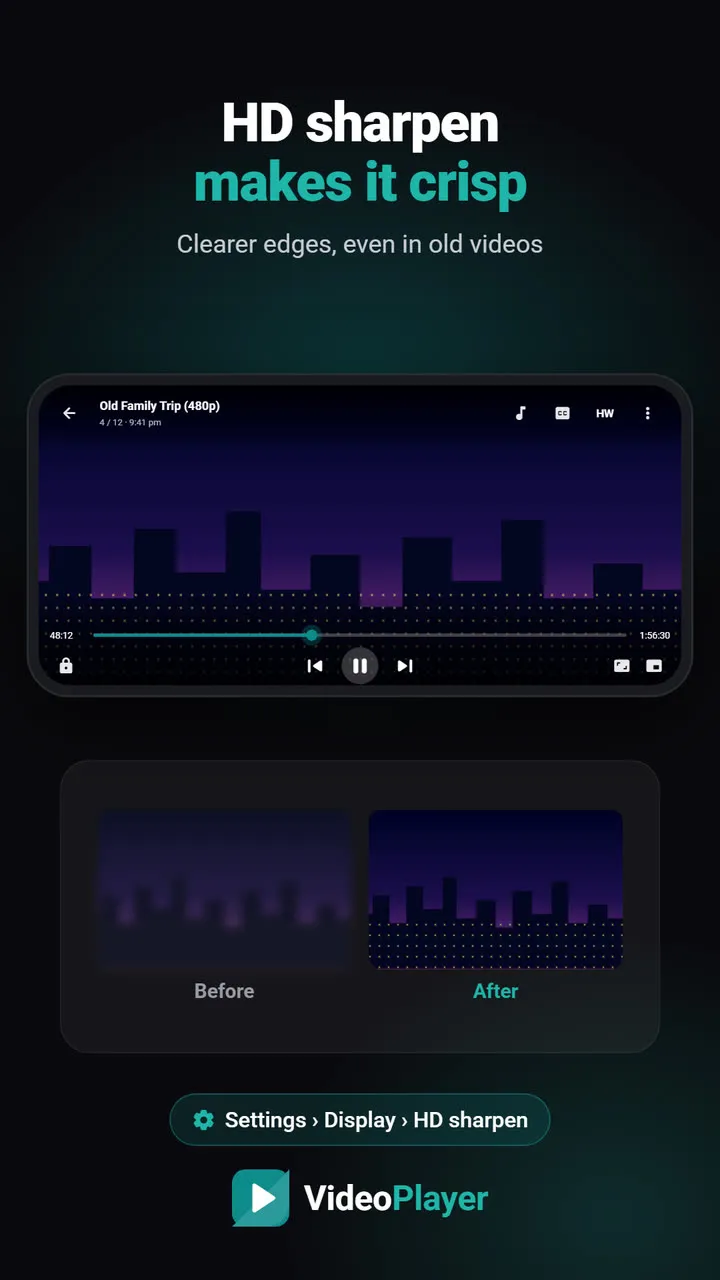
Filters that sharpen or enhance the picture add work to every frame. In VideoPlayer, HD sharpen is meant for low-quality clips; leave it off for 4K films, which are sharp already.
Fix 8: Is it the picture or the sound?
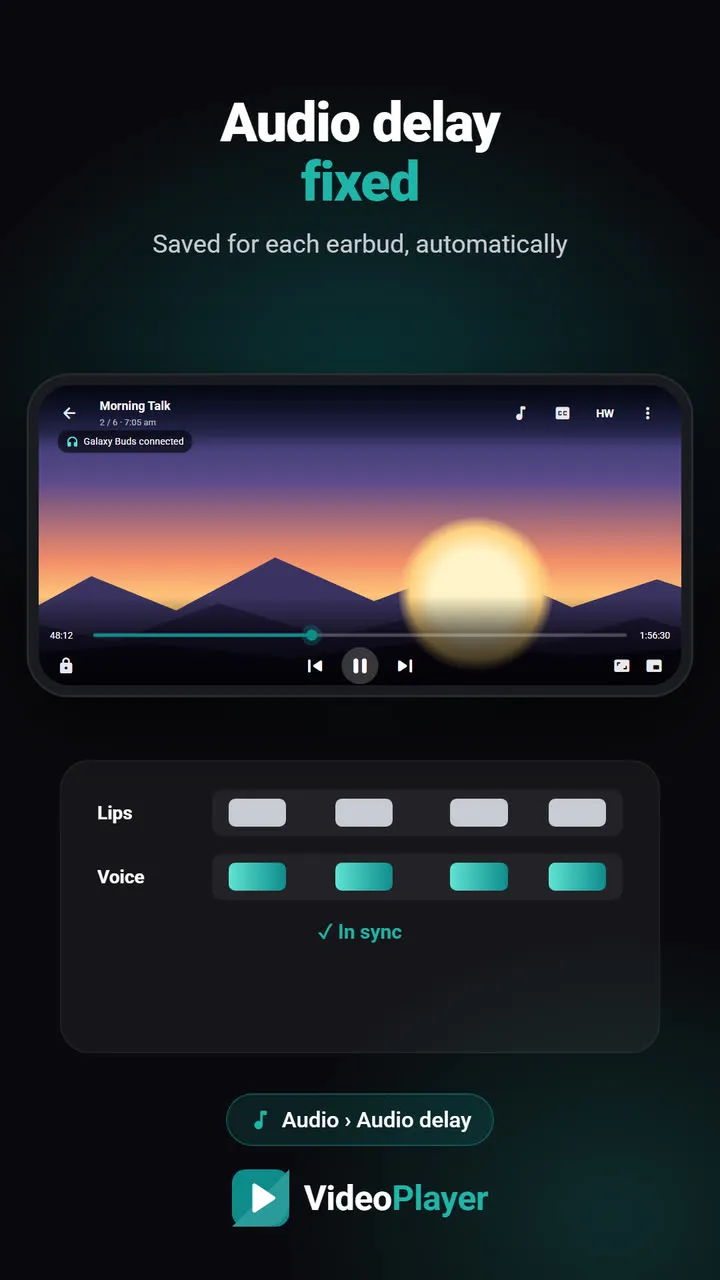
If the picture is smooth but voices arrive after lips move, that isn’t video lagging — it is Bluetooth audio delay. Wireless earbuds add a fraction of a second. VideoPlayer lets you fix Bluetooth audio delay once, and remembers it for each earbud.
Video lagging: what helps most
| Situation | Best fix |
|---|---|
| Only 4K or HEVC files lag | Fix 1, then fix 2 |
| Every video lags today | Fix 3, 4 and 5 |
| Lags only from the memory card | Fix 6 |
| Picture fine, voices late | Fix 8 |
Curious why frame rate matters so much? Wikipedia’s page on frame rate is a good short read. If your video goes black instead of lagging, see the video black screen guide.
Frequently asked questions
Why is my video lagging on Android?
Does HW or SW stop video lagging?
How do I stop 4K video lagging on an old phone?
Can a memory card cause video lagging?
Try it on your own videos
VideoPlayer is free, has no ads and needs no account. Every feature in this guide works offline.
Guides
MKV no sound
Picture plays, audio is silent? Five fixes, easiest first.
Read the fix →Format not supported
“Can’t play this video”? Find the cause, then play it.
Read the fix →Black screen, sound plays
Hear the movie but can’t see it? Six fixes.
Read the fix →Subtitles not showing
The SRT is right there, but nothing shows? Seven fixes.
Read the fix →Learn English with movies
Dual subtitles, slower speed, repeat one line — a real method.
Read the fix →Bigger subtitles
Tiny subtitles? Make them big, bright and easy to read.
Read the fix →