Improve Video Quality of Old, Blurry Videos With HD Sharpen
A wedding video from 2012, cartoons recorded off TV, a 480p film from an old pen drive — they looked fine on the screens of their day, but on a modern phone with a sharp display they look soft and smudgy. VideoPlayer’s HD sharpen can noticeably improve video quality of these clips while you watch, using the phone’s graphics chip.
How to turn on HD sharpen
- Open the Settings tab in VideoPlayer.
- Under Display, switch on HD sharpen (beta).
- Open a video. The effect applies from the next video you open.
Switch it off the same way. Because it applies to every video, it’s best for people who watch a lot of older content; for new HD and 4K files it isn’t needed.
What HD sharpen does to video quality
HD sharpen is an unsharp mask running on the GPU for every frame: it compares each pixel with its neighbours and boosts the difference slightly, so edges — faces, text, outlines — look firmer and fine detail stands out. It doesn’t invent detail that isn’t in the file (no filter can), but it makes the detail that is there easier to see on a high-resolution screen.
| Video | Effect |
|---|---|
| 240p – 480p, old recordings | Clearly crisper |
| 720p | Mild improvement |
| 1080p and 4K | Little difference — leave it off |
Requirements and limits
- Android 10 or newer. On older phones the setting has no effect.
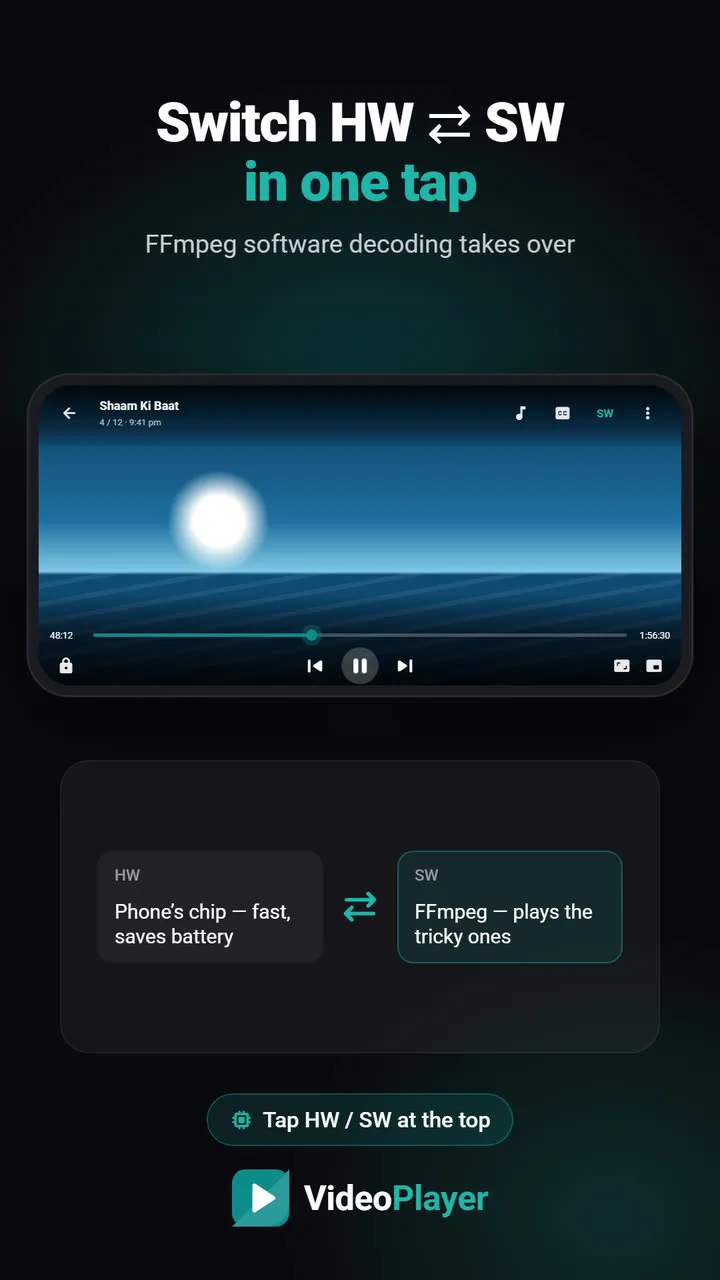
- Hardware decoding. The effect runs between the phone’s video chip and the screen. If you switch a video to SW decoding, it plays without the effect — see HW vs SW.
- Automatic fallback. If a phone or a particular video can’t run the effect, VideoPlayer switches it off for that video and keeps playing, with a short message.
- A little more battery. Processing every frame on the GPU costs some power — usually small.
Other ways to improve video quality on your phone
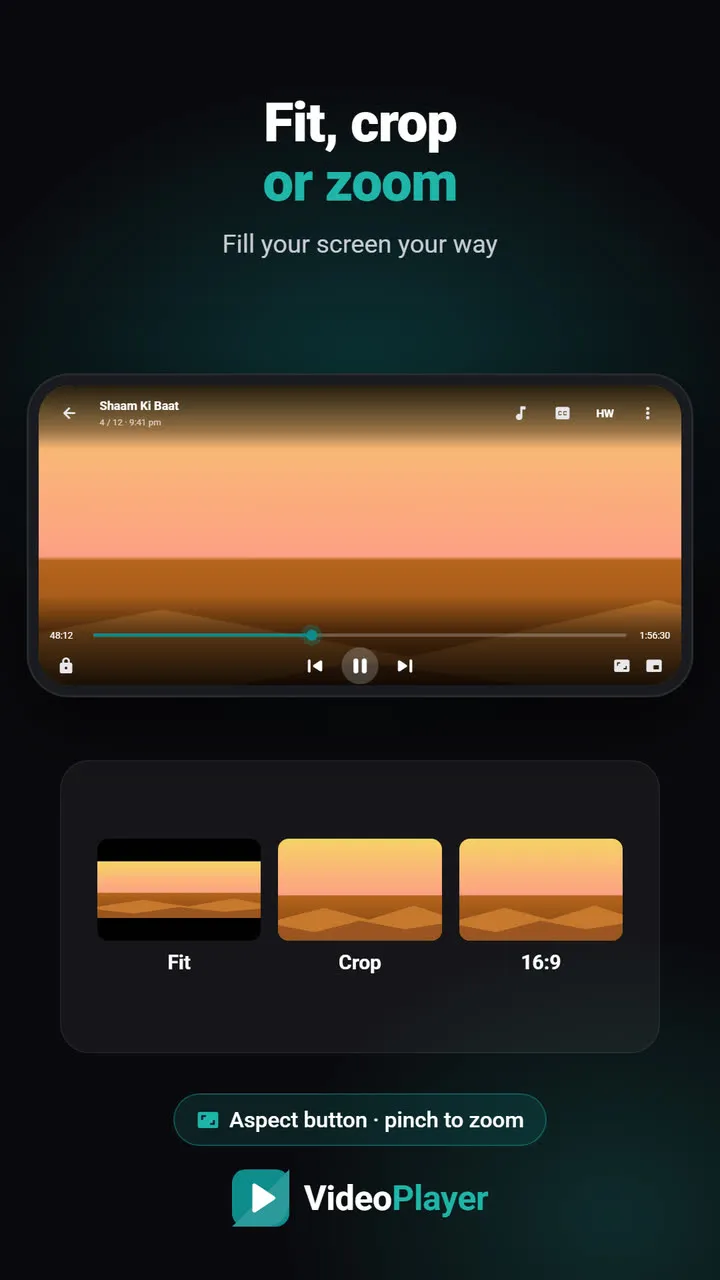
- Don’t over-zoom. Filling a tall screen with Crop or a big pinch zoom enlarges a small video further; Fit often looks sharper.
- Pick the higher-quality track in streams from ⋮ More → Video quality when it’s offered.
- Brightness up a touch in bright rooms — dim, washed-out pictures look softer than they are.
- Keep the original file. Re-shared WhatsApp copies are heavily compressed; the original from the camera or download looks far better.
Why old videos look worse on new phones
A 480p video is 854 × 480 pixels. A typical phone screen today is around 1080 × 2400. To fill it, every pixel of the video is stretched across more than two pixels of the screen, and the stretching softens edges. The same file looked sharp on a 2012 phone because that screen was barely bigger than the video. HD sharpen restores some of that crispness, which is why the video quality gain is biggest on the oldest, smallest files.
The technique is a classic of image editing; Wikipedia explains unsharp masking with examples.
Frequently asked questions
How can I improve video quality of old videos?
Does HD sharpen turn 480p into real HD?
Why doesn’t HD sharpen work on some videos?
Should I keep HD sharpen on for 4K videos?
Try it on your own videos
VideoPlayer is free, has no ads and needs no account. Every feature in this guide works offline.