Video Bookmarks and Screenshots: Keep the Moments That Matter
Some moments you’ll want again: the scene you want to show your friends, the formula at 41:20 in a lecture, the exact frame of a family video that would make a great photo. VideoPlayer gives you two ways to keep them: video bookmarks, which mark a time you can jump back to, and screenshots, which save the picture itself.
How to add video bookmarks
- Pause or keep playing at the moment you want to keep.
- Open ⋮ More → Bookmarks.
- Tap Add bookmark here.
The bookmark appears as a small yellow dot on the seek bar, so you can see at a glance where your saved moments are. In the Bookmarks list, tap one to jump to it, or tap ✕ to remove it. Bookmarks are saved per video and stay until you delete them.
Where video bookmarks are useful
- Lectures and courses: mark each important explanation, then revise only those.
- Long recordings: a wedding video with the varmala, the speech and the dance marked.
- Sports: the goals or wickets in a full match.
- Films: scenes to show someone else later.
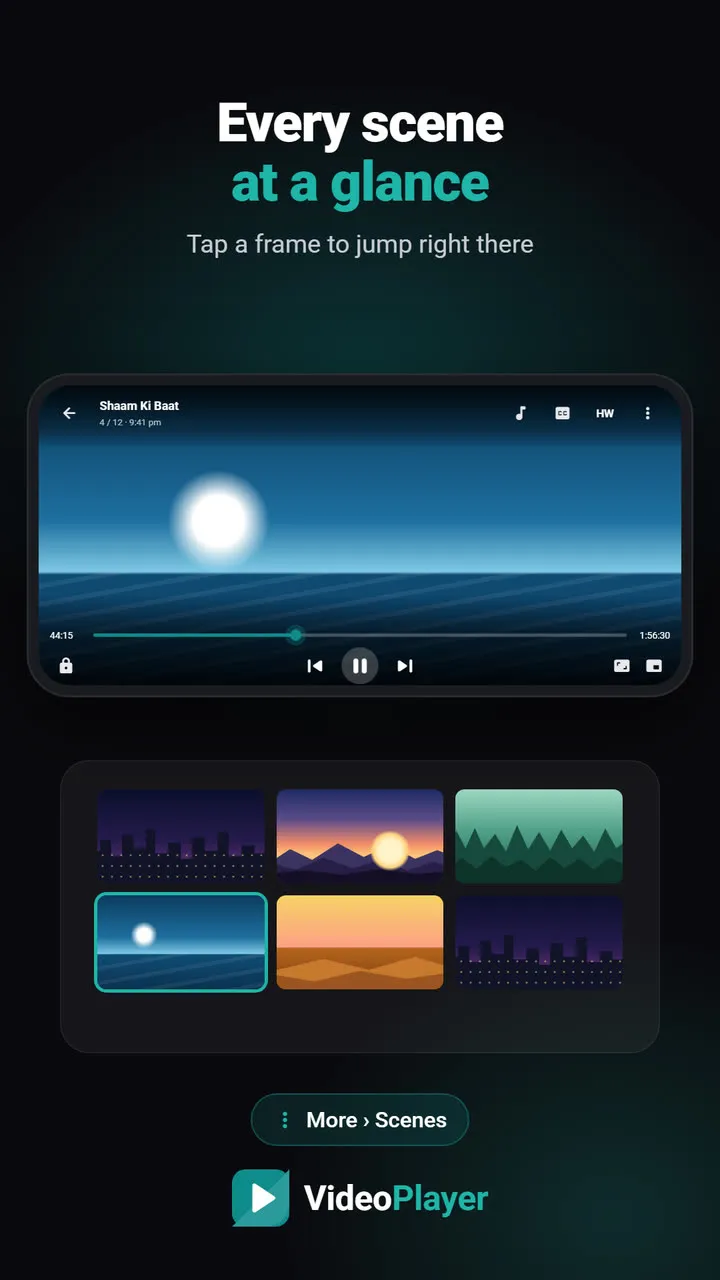
If you remember a line rather than a time, dialogue search finds it from the subtitles; if you remember how it looked, the scene grid shows the whole video.
How to take a screenshot of a video
- Pause on the frame you want (or capture while it plays).
- Tap the camera button in the quick bar (it’s there by default).
- The screen flashes briefly and a message confirms Saved to Pictures/VideoPlayer.
Unlike the phone’s own screenshot, this saves the video frame only — at the video’s full resolution, without controls, subtitles or the status bar. Files are named after the video and the time, so they’re easy to find later in your gallery.
Screenshots that look good
- Pause first for moving scenes — you get exactly the frame you chose.
- Use HD files where you can; the screenshot is as sharp as the video.
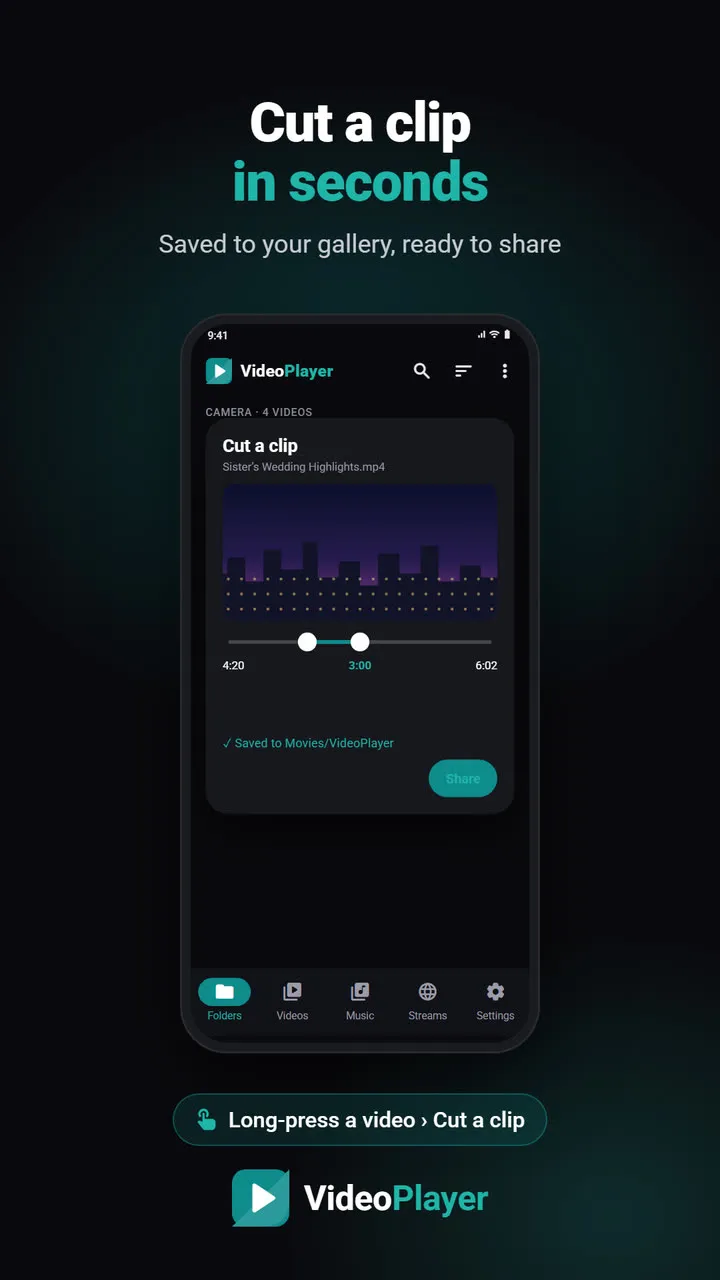
- Want a moving moment instead? Cut a short clip with the video cutter and share it.
Screenshots need Android 10 or newer; on older phones the button explains that it isn’t available.
Privacy
Video bookmarks are stored inside the app on your phone; screenshots go to your own Pictures folder. Nothing is uploaded. Clearing VideoPlayer’s storage removes the bookmarks, but your screenshots stay in the gallery.
Video bookmarks, screenshots or a clip?
Three tools save a moment in three different ways. Use the one that fits what you’ll do next:
| You want to… | Use |
|---|---|
| Come back to the spot later | Video bookmarks — they jump straight there |
| Keep or send a still picture | Screenshot — saved to your gallery |
| Share the moment with sound and movement | Cut a clip |
| Find a line someone said | Dialogue search |
Students often combine them: video bookmarks at each topic of a recorded class, and a screenshot of every slide worth revising.
Video bookmarks and screenshots never change the original video file, so use them freely. Mark every moment you might want again — it costs nothing, and finding the spot later takes one tap instead of minutes of dragging.
Android’s shared photo folders are described in the Android media storage guide.
Frequently asked questions
How do I add video bookmarks?
How do I jump to a bookmark?
Where are video screenshots saved?
Do screenshots include subtitles and controls?
Try it on your own videos
VideoPlayer is free, has no ads and needs no account. Every feature in this guide works offline.