Video Format Not Supported on Android: 6 Ways to Play It
You tap a video and get a grey box: “Video format not supported”, “Can’t play this video” or “Unsupported file”. The message never says what isn’t supported, which makes it feel hopeless. It isn’t. A video file has three parts — the container, the video codec and the audio codec — and the error almost always comes from just one of them. Find that part and the fix is quick.
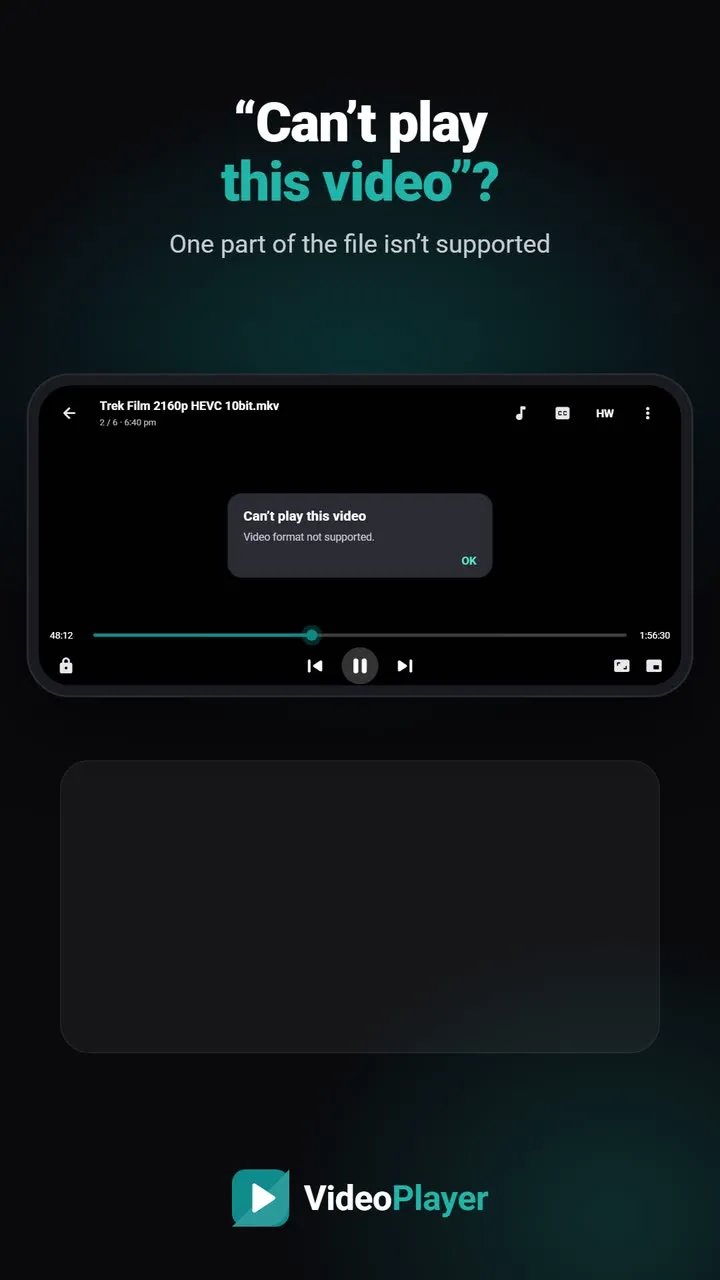
What “video format not supported” really means
Think of an MKV or MP4 file as a lunchbox. The box is the container. Inside are the video codec (H.264, HEVC, AV1…) and the audio codec (AAC, E-AC3, DTS…). Your phone’s built-in player knows some boxes and some codecs, not all of them. When it meets one it doesn’t know, it gives up with the same vague message.
| Part | Common trouble-makers on phones |
|---|---|
| Container | WMV / ASF, RMVB, damaged or half-downloaded files |
| Video codec | 10-bit HEVC on older phones, AV1, old DivX / Xvid, VC-1 |
| Audio codec | E-AC3, AC3, DTS, TrueHD (Dolby and DTS sound) |
Step 1: Find the part that is not supported
Open our free video codec checker and choose the file. It reads only the header, right in your browser, and tells you the container, the video and audio codecs and whether each one plays on Android. Nothing is uploaded, so it works for private videos too. This one minute saves you from trying random apps.
Step 2: Try a player with its own decoders
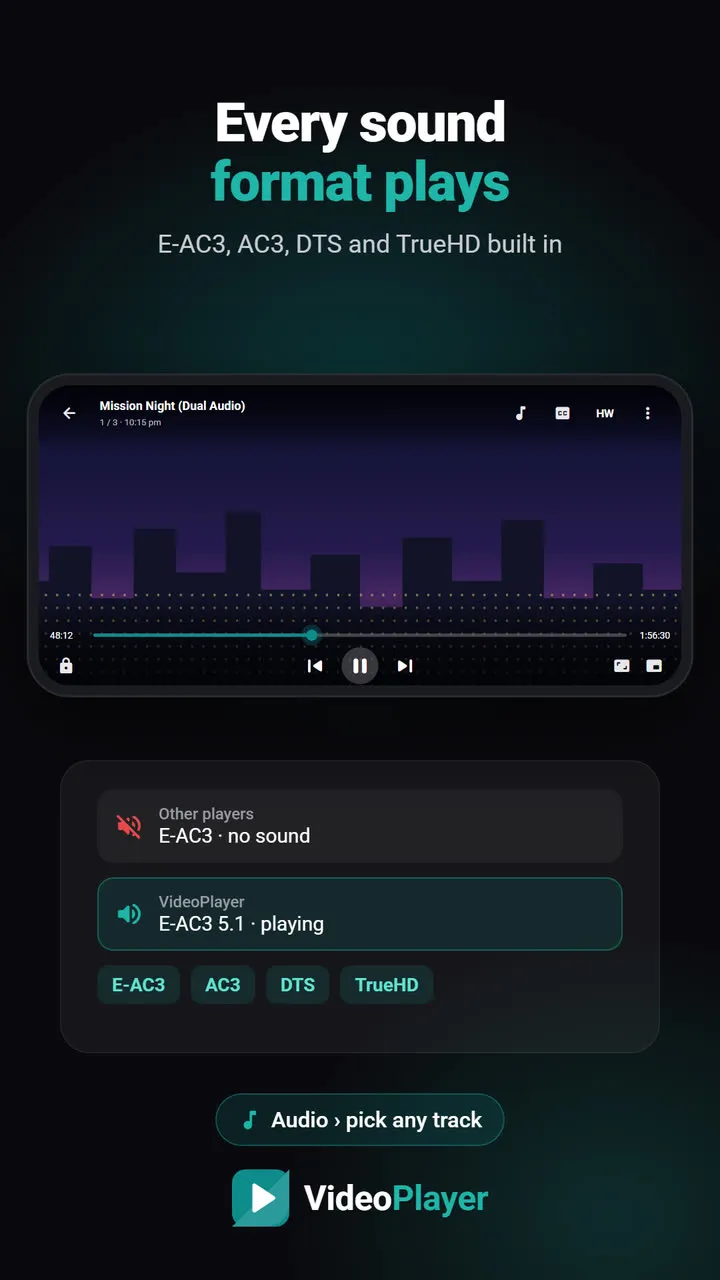
The gallery app relies only on the decoders built into your phone. A player that brings its own decoders plays far more files. VideoPlayer includes FFmpeg decoders for H.264, HEVC, VP8 and VP9 video and for E-AC3, AC3, DTS, TrueHD and most other sound formats. In most cases the “video format not supported” file simply plays.
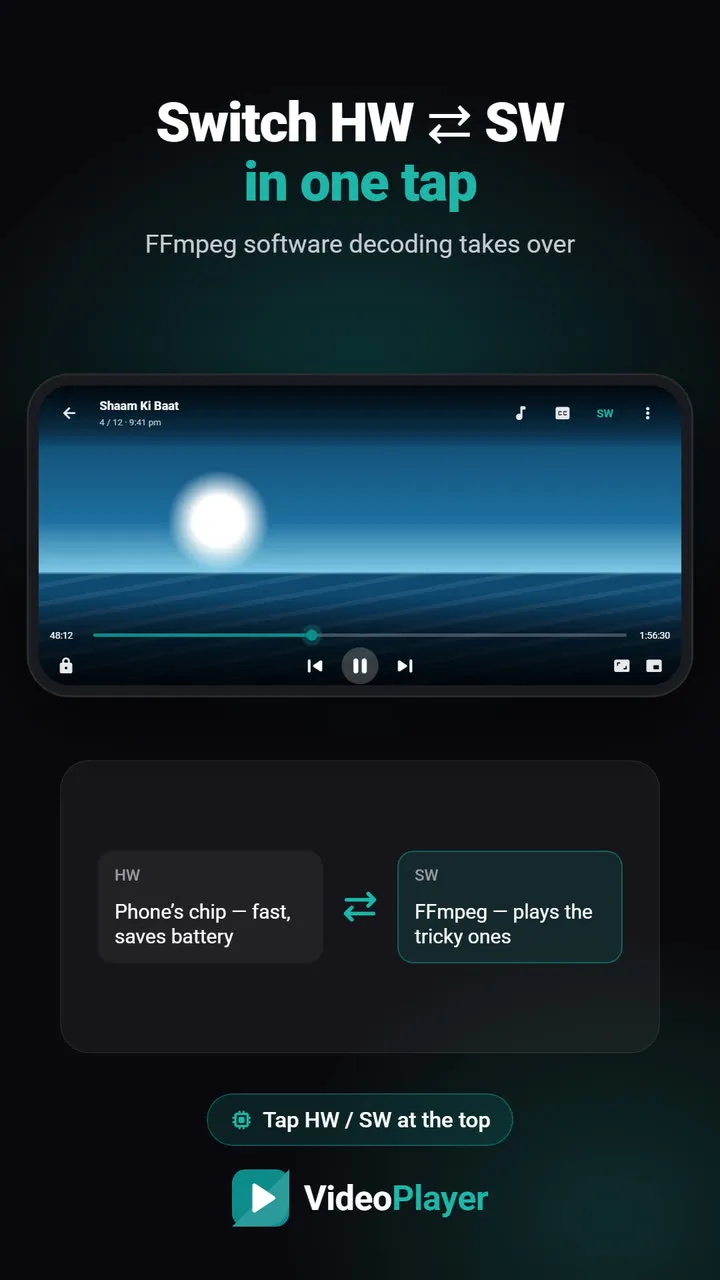
Step 3: Switch between HW and SW decoding
Sometimes the phone says it supports a format, then fails halfway: a green screen, a frozen frame or the error pops up after a few seconds. That points to the phone’s hardware decoder. In VideoPlayer tap HW at the top of the player and it changes to SW — the software decoder takes over. The choice is remembered. Our guide on green screen and decoder errors covers this step with a demo.
Step 4: If only the sound is missing
When the picture plays but the audio is silent, or you see “audio format not supported”, the problem is the audio codec, not the video. Pick another audio track, or use the fixes in MKV no sound on Android.
Step 5: Check the file isn’t damaged
A file that stopped downloading at 97% often looks normal in the gallery, then refuses to play. Compare its size with the size shown where you downloaded it. If the file was copied from a pen drive or a PC, copy it again. A damaged file shows the same “video format not supported” error, but no player can fix it.
Step 6: Convert it as a last resort
A few formats really don’t play on Android phones — WMV and RealVideo files from the 2000s, for example. For those, convert the file once on a computer. The free, open-source HandBrake does it in a few clicks: pick the “Fast 1080p30” preset and you get an MP4 with H.264 video and AAC sound, which plays on every phone, TV and laptop.
Video format not supported: which fix for which case
- Error on every MKV: the gallery app can’t open them — step 2.
- Error on one 4K or HDR film: your phone’s decoder may be too old — step 3, then step 6.
- Picture but no sound: audio codec — step 4.
- Error after a few minutes: damaged file — step 5.
If the file finally plays but stutters, read our guide to fix video lagging next.
Frequently asked questions
What does video format not supported mean?
How do I fix video format not supported without converting?
Why does MKV show video format not supported in the gallery?
Can a damaged file cause this error?
Try it on your own videos
VideoPlayer is free, has no ads and needs no account. Every feature in this guide works offline.
Guides
MKV no sound
Picture plays, audio is silent? Five fixes, easiest first.
Read the fix →Black screen, sound plays
Hear the movie but can’t see it? Six fixes.
Read the fix →Subtitles not showing
The SRT is right there, but nothing shows? Seven fixes.
Read the fix →Video lagging
Stutter, jerks and frozen frames — eight fixes.
Read the fix →Learn English with movies
Dual subtitles, slower speed, repeat one line — a real method.
Read the fix →Bigger subtitles
Tiny subtitles? Make them big, bright and easy to read.
Read the fix →