Video Volume Booster: Make Videos Louder Than Your Phone’s Max
Full volume, phone held up to your ear, and the video is still too quiet — usually an old recording, a lecture captured on a phone, or a film with a soft mix. Before installing a separate “volume booster” app that boosts everything (and often shows ads), try the one inside VideoPlayer. It takes the sound up to 200% with the same swipe you already use for volume.
How to use the volume booster
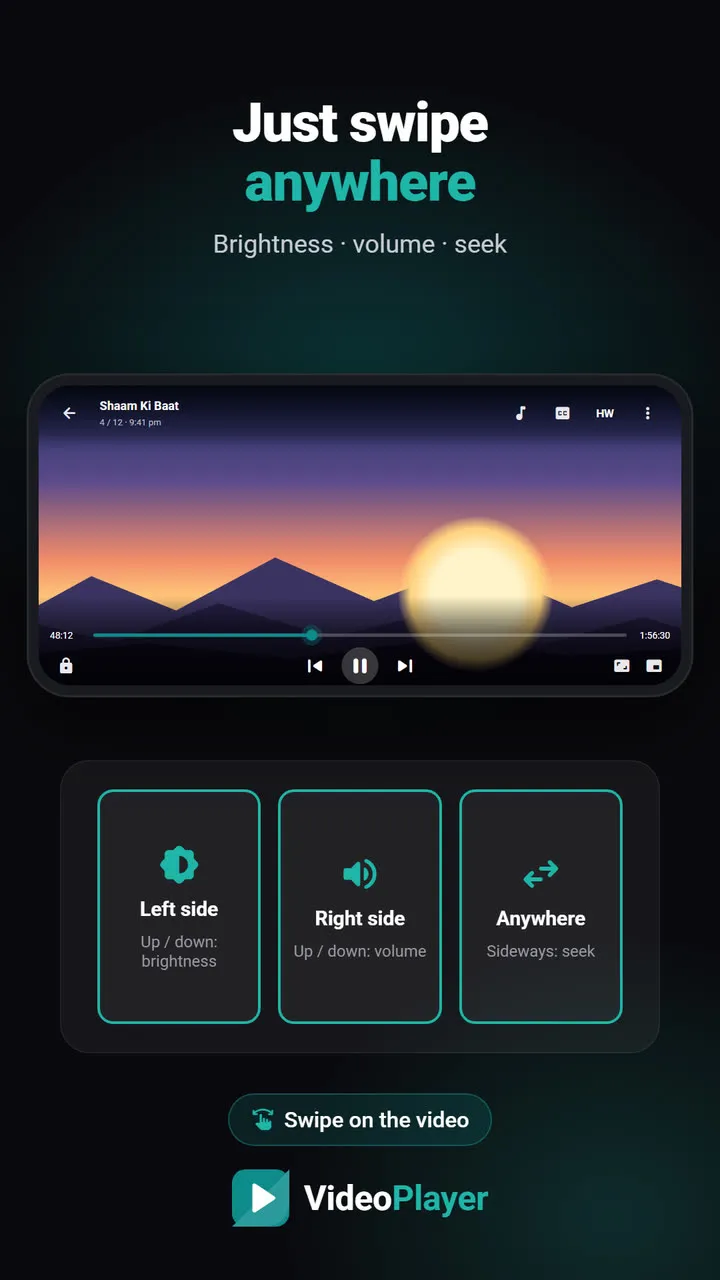
- While the video plays, swipe up on the right side of the screen. The volume bar fills like normal.
- Keep swiping past 100%. The bar turns teal — that’s the booster — and goes up to 200%.
- Swipe down to come back below 100%, where it’s just the normal phone volume again.
Prefer buttons? Open the Audio panel (music-note button). The Volume slider has a line at 100%; drag past it to boost. The phone’s volume keys also go above 100% while the player is open.
How the volume booster avoids crackling
Most booster apps simply multiply the sound. Quiet parts get louder — and loud parts clip, which is the harsh crackle you hear on a phone speaker. VideoPlayer’s booster uses Android’s loudness enhancer, which raises the perceived loudness while holding peaks back. Speech becomes clearly louder; explosions don’t tear.
It applies only to VideoPlayer, not to your calls, notifications or other apps, and it switches off the moment you go back below 100%.
When a volume booster is the right tool — and when it isn’t
| Situation | Use |
|---|---|
| Everything is quiet, even at max | Volume booster |
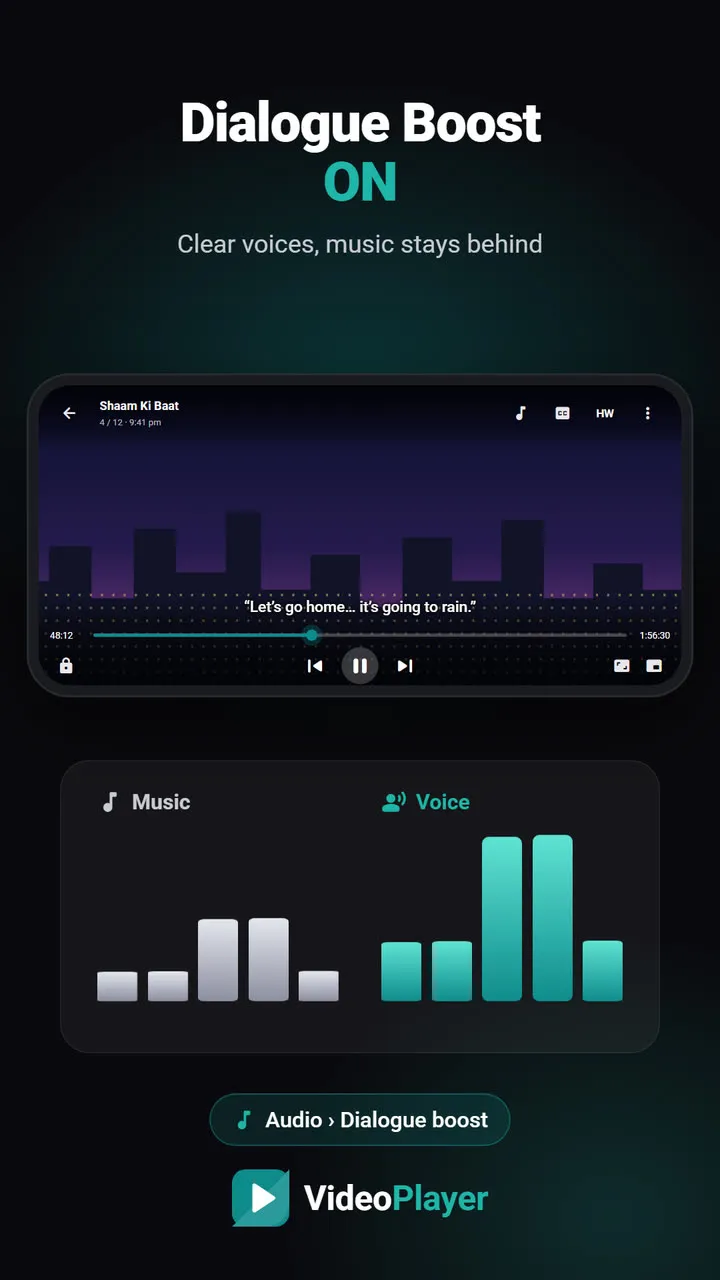
| Music is loud but voices are soft | Dialogue Boost |
| Quiet scenes and loud scenes swing a lot | Night Leveler |
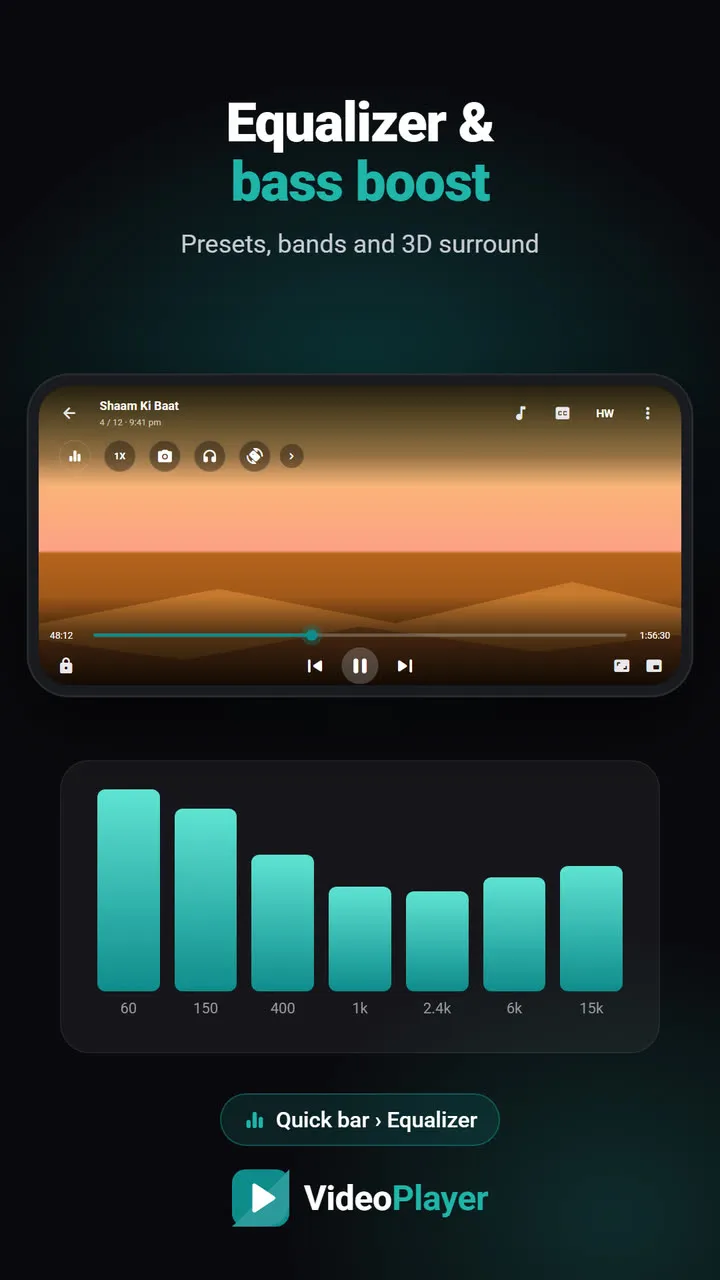
| Want more bass, not more volume | Equalizer and bass boost |
Boosting a badly mixed film just makes the music louder too. If the problem is the voices, Dialogue Boost gives a better result at a lower volume.
A few honest warnings
- Protect your ears. 200% through earphones can be very loud. Use the booster for quiet videos, not as a habit.
- Small speakers have limits. Past a point a phone speaker can’t move more air; the booster then adds loudness, not bass.
- Bluetooth speakers have their own volume. Turn the speaker up first, then boost if needed.
Check these phone settings before using a volume booster
- Media volume, not ringer volume. Press a volume key while the video plays so you change media volume, not the ringtone.
- Volume limiter. Many Samsung phones have a Media volume limit under Settings → Sounds and vibration → Volume. If it’s on, the phone never gets fully loud.
- Bluetooth volume. Some earbuds keep their own volume level. Turn it up on the earbuds or in their app as well.
- Dirty speaker grille. Dust in the speaker hole can make any phone sound weak — clean it gently with a soft brush.
If all of these are fine and the video is still quiet, the volume booster is the right next step.
The World Health Organization has practical guidance on safe listening if you use earphones a lot.
Other ways to make a quiet video easier to hear
- Turn on subtitles — or let VideoPlayer make AI subtitles if the file has none.
- Use the swipe gestures to change volume quickly without opening a menu; see video player gestures.
- Check the phone isn’t in a power-saving mode that limits speaker volume.
Frequently asked questions
How do I make a video louder than 100% on Android?
Does the volume booster damage the phone speaker?
Does it boost other apps too?
Is the volume booster better than Dialogue Boost?
Try it on your own videos
VideoPlayer is free, has no ads and needs no account. Every feature in this guide works offline.