Equalizer, Bass Boost and 3D Surround: Better Sound for Videos
Phone speakers and cheap earphones often sound thin: songs have no thump, action scenes no weight. You don’t need a separate app to fix that. VideoPlayer has a full equalizer with presets and adjustable bands, plus bass boost and 3D surround — all one tap away while the video plays.
Open the equalizer in 3 steps
- Tap the video to show the controls.
- Tap the Equalizer button in the quick bar under the title (or open the Audio panel and tap the same button).
- Pick a preset — Normal, Pop, Rock, Bass Booster, Classical and more, depending on your phone — or drag the band sliders yourself.
Changes are instant and stay on for the next videos until you switch it off.
Understanding the equalizer bands
Each slider controls a range of frequencies. A rough guide for the five bands:
| Band | What you hear | Turn up for |
|---|---|---|
| 60 Hz | Deep bass, explosions | Action films, EDM |
| 230 Hz | Warmth, body of voices | Thin-sounding speakers |
| 910 Hz | Middle of voices and instruments | Usually leave flat |
| 3.6 kHz | Clarity, consonants in speech | Mumbled dialogue |
| 14 kHz | Air, sparkle, cymbals | Dull earphones |
A good rule: small changes. Two or three steps up on one band and one down on another usually sounds better than everything at maximum.
Bass boost and 3D surround
Under Audio effects (in the More menu or the quick bar) you’ll find two extra sliders:
- Bass boost adds low-end weight. Great with earphones; on a phone speaker, keep it moderate or it can rattle.
- 3D surround widens the stereo image so sound seems to come from around you. Best with headphones.
Both are provided by your phone’s audio system, so availability depends on the model; VideoPlayer tells you if your phone doesn’t offer one.
Equalizer settings for common situations
- Movies on the phone speaker: small boost at 230 Hz and 3.6 kHz, bass boost low.
- Songs with earphones: Bass Booster preset or +3 at 60 Hz, a touch of 3D surround.
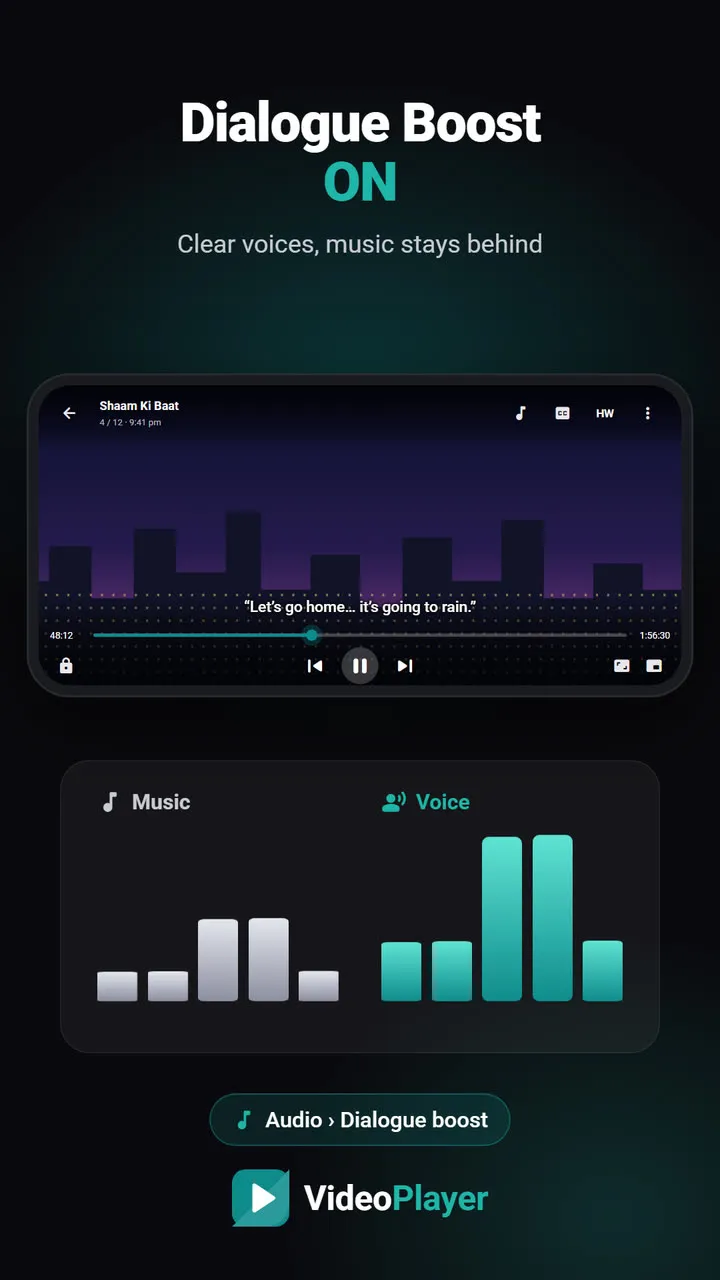
- Lectures and podcasts: raise 3.6 kHz, lower 60 Hz to cut rumble. Or simply use Dialogue Boost, which targets voices automatically.
Equalizer vs. volume: what’s the difference?
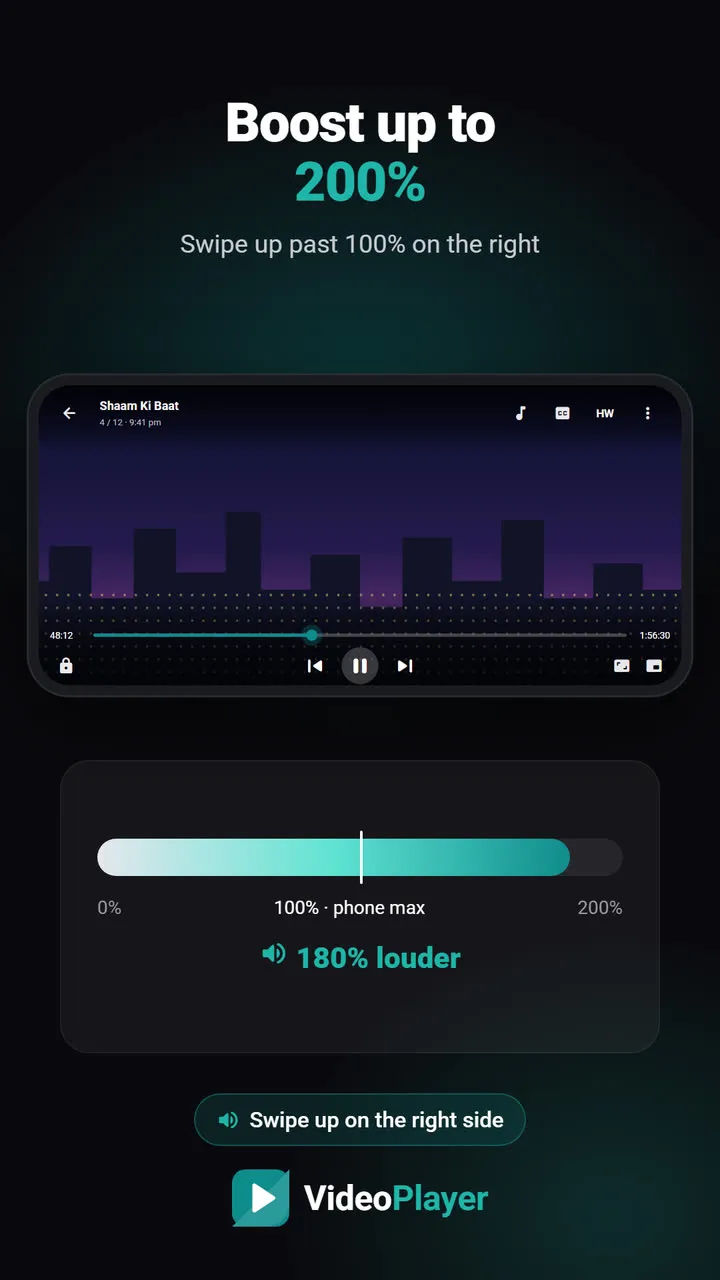
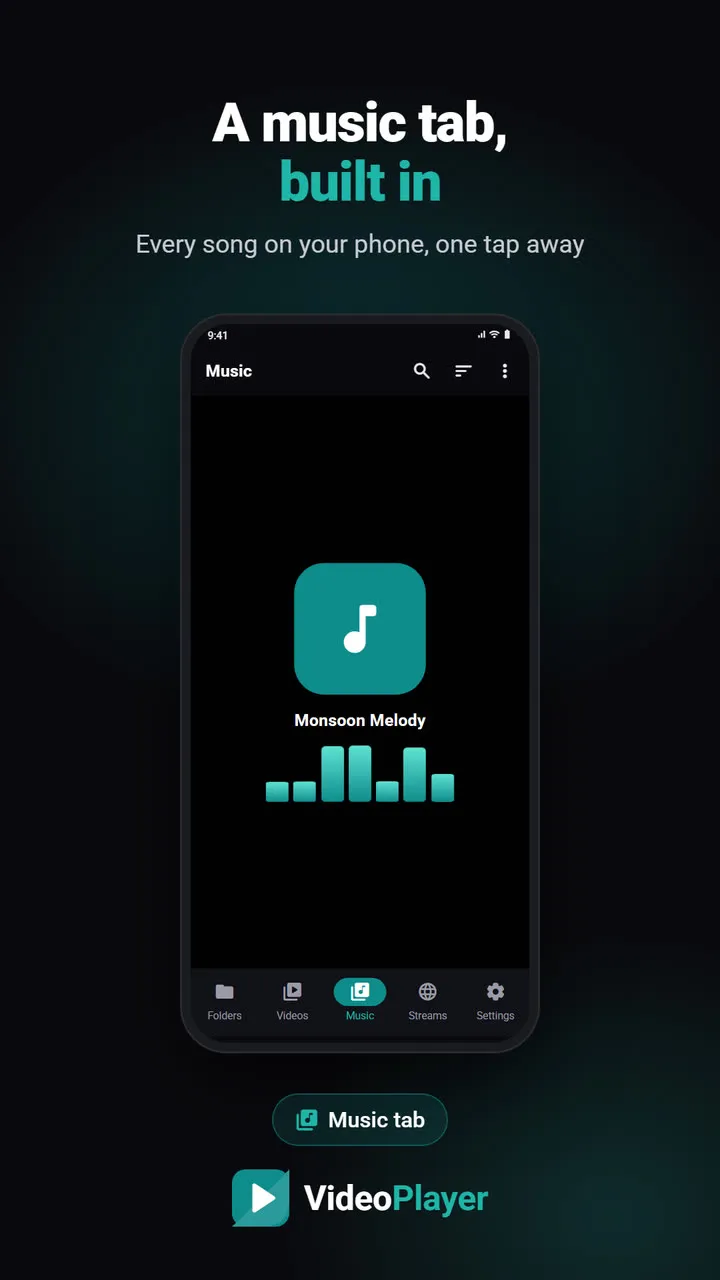
An equalizer changes the balance of the sound, not the overall loudness. If everything is too quiet, the volume booster is the right tool. If you play a lot of music, the music tab uses the same settings.
Phone speaker, earphones or headphones?
The same setting sounds different on every device, so start from what you’re listening on:
- Phone speaker: a tiny speaker can’t produce deep bass. Raising the lowest band mostly adds rattle. Lift the middle bands a little instead — voices and instruments come forward.
- Budget wired earphones: these are often thin in the low end, so a small bass lift helps a lot.
- Over-ear headphones: usually well balanced already. Keep changes small, two or three steps at most.
- Car stereo over Bluetooth: the car has its own tone controls — set those first, then fine-tune on the phone.
Whatever you use, listen for a minute before deciding. Ears adjust quickly, and a setting that sounds exciting at first can feel tiring after an hour.
For a deeper explanation of how equalizers shape sound, see the Wikipedia article on audio equalization.
Frequently asked questions
Where is the equalizer in VideoPlayer?
Does the equalizer work with Bluetooth earphones?
Why don’t I see bass boost or 3D surround?
Will the equalizer stay on for other videos?
Try it on your own videos
VideoPlayer is free, has no ads and needs no account. Every feature in this guide works offline.