Video Player Gestures: Brightness, Volume, Seek and Zoom by Swiping
Reaching for tiny on-screen buttons in a dark room is clumsy, and the phone’s own volume slider covers half the picture. That’s why good video player gestures matter: once you know them, you never open a menu for brightness, volume or seeking again. Here’s every gesture in VideoPlayer and how to get the most out of them.
The four main video player gestures
| Gesture | Where | What it does |
|---|---|---|
| Swipe up / down | Left half | Brightness |
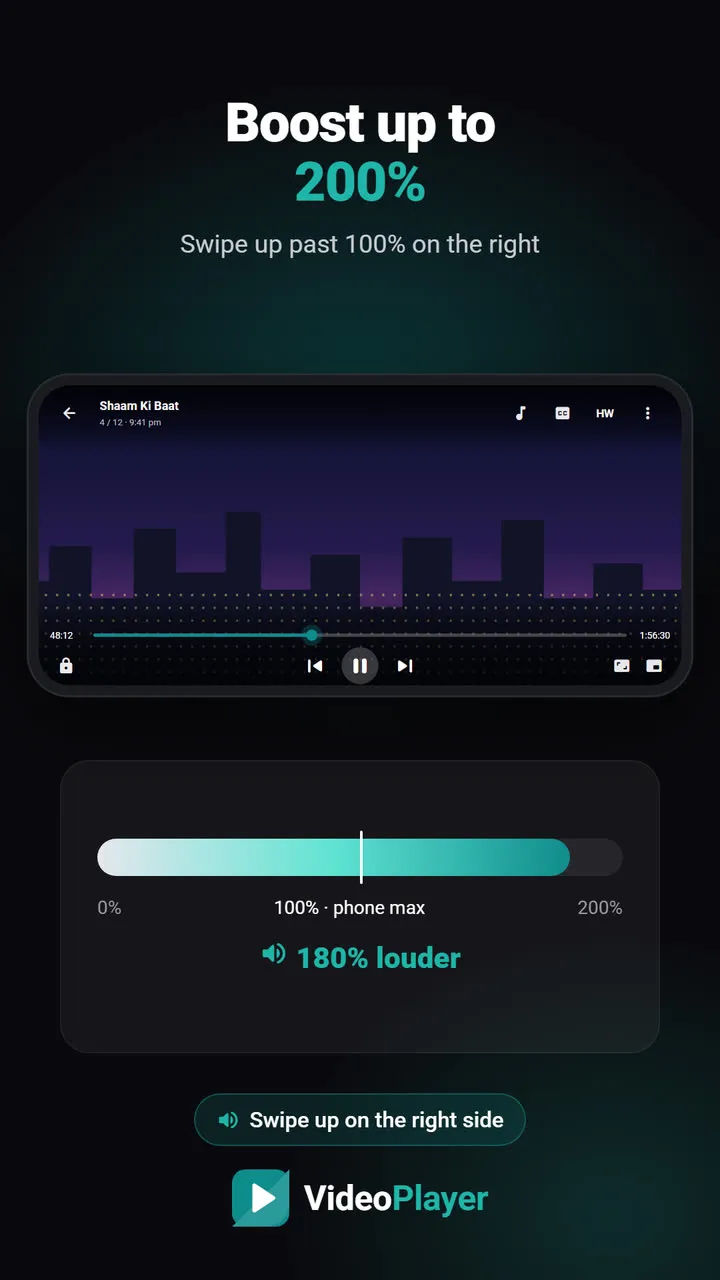
| Swipe up / down | Right half | Volume (past 100% boosts up to 200%) |
| Swipe sideways | Anywhere | Seek forward or back, with a preview frame |
| Pinch | Anywhere | Zoom in up to 4x |
Each gesture shows a clean indicator — a bar for brightness and volume, the time and target for seeking, the zoom level for pinching — so you always know where you are.
Brightness: the left side
Swipe up on the left half to brighten, down to dim. The change applies only while the video plays; leave the player and your normal brightness comes back. If you like a fixed level for videos, turn on Remember brightness in Settings → Display.
Even the lowest brightness too bright at night? Turn on Night mode in the ⋮ menu — it dims and warms the picture below what the phone allows.
Volume: the right side
Swipe up on the right half to raise the volume. Keep going past 100% and the bar turns teal — that’s the volume booster, up to 200%. Swipe down to lower it again.
Seeking: sideways
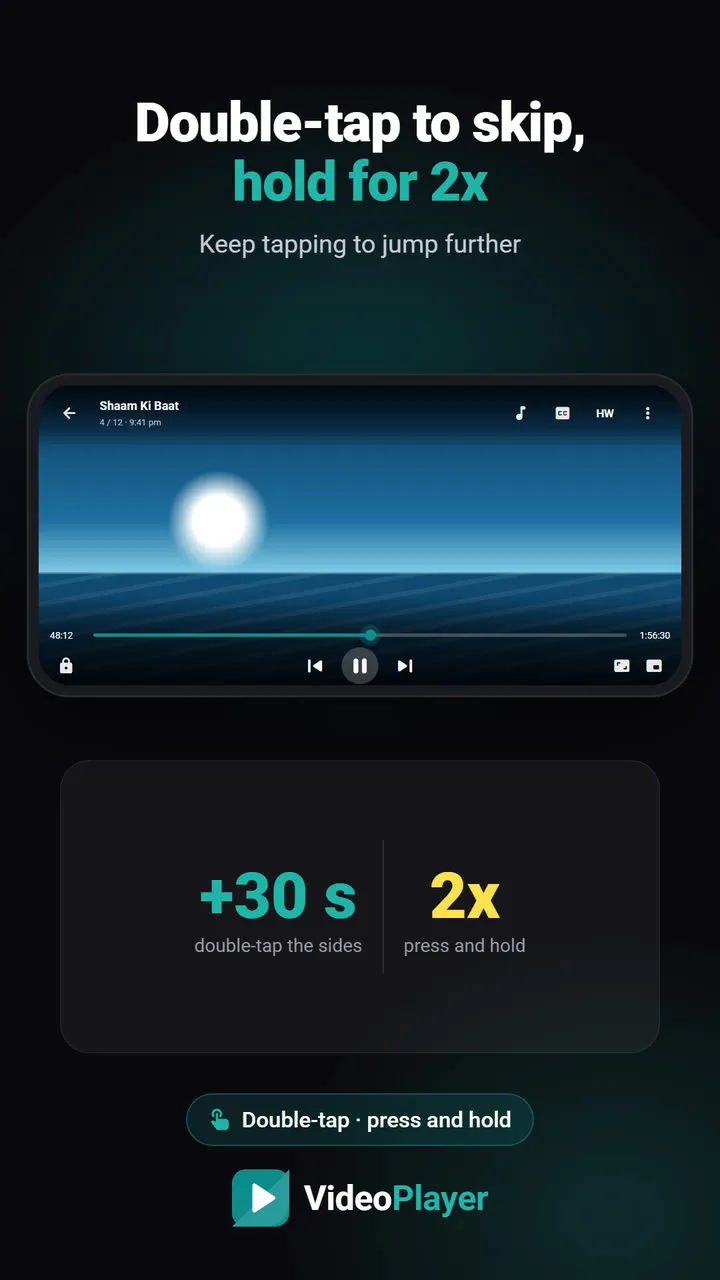
Swipe left or right anywhere on the video. The further you move, the further you jump — a full swipe covers about a fifth of the video, at least a minute and a half. A preview frame shows where you’ll land, along with the time difference. For short, exact jumps, double-tap the sides instead.
Zoom: pinch
Pinch with two fingers to zoom in, up to 4x — useful for reading small text in a lecture or filling the screen on an ultra-wide phone. Pinch back below 105% and it snaps to normal. For fixed fits like Crop or 16:9, use the aspect ratio button.
Turning video player gestures on or off
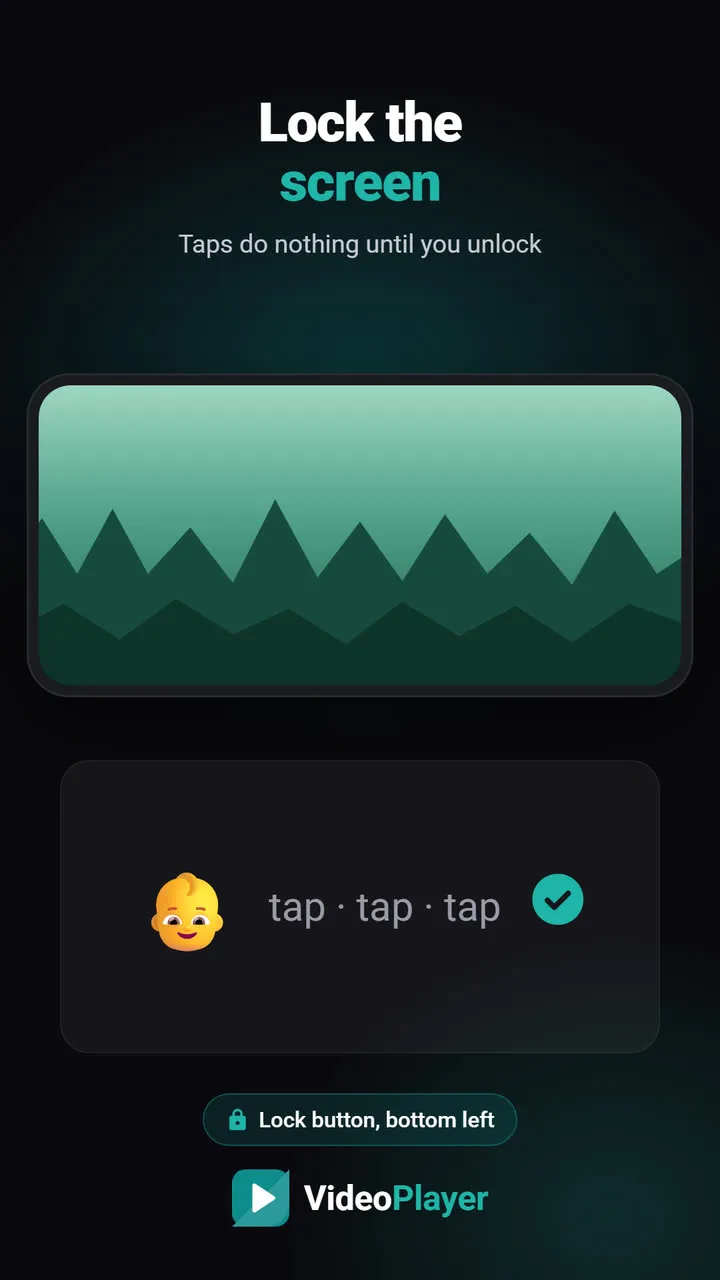
In Settings → Gestures you can switch off swipe gestures, double-tap seeking or long-press 2x individually. Useful if you watch lying down and keep triggering them by accident — or simply lock the screen for a while.
Tips from daily use
- Start a swipe from the middle of a side, not the very edge, so Android’s back gesture doesn’t take over.
- Gestures work in both portrait and landscape.
- Gestures don’t need the controls to be visible — swipe any time.
Teaching video player gestures to parents and grandparents
Many older viewers find small buttons hard but pick up swipes quickly once shown. Sit with them for one video and show just two moves: left side for light, right side for sound. Leave seeking and double tap for later. If they keep skipping by accident, switch off double-tap seeking in Settings → Gestures, and show them the screen lock for long films. A few minutes of practice and the video player gestures become the easiest way they control a video.
Android’s own design guidance on touch gestures is in the Android gestures documentation.
Frequently asked questions
What are the video player gestures in VideoPlayer?
How do I increase volume above 100% with a gesture?
Can I turn off swipe gestures?
Why does swiping from the edge go back instead?
Try it on your own videos
VideoPlayer is free, has no ads and needs no account. Every feature in this guide works offline.