SRT Editor Online — Fix Subtitle Text and Timing
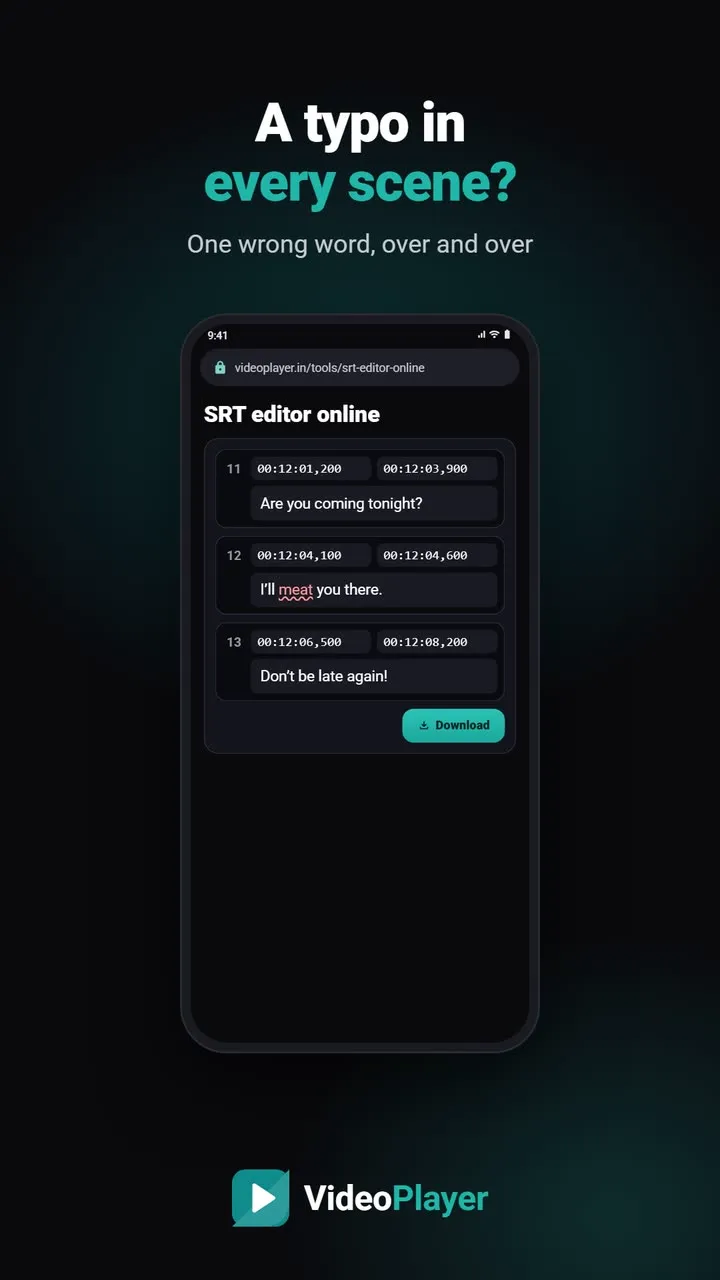
A spelling mistake in every scene, a name written three different ways, one line that stays on screen far too long — small subtitle errors are distracting, and opening a big desktop program for them feels like overkill. This SRT editor shows every line of your subtitle with its start time, end time and text, so you can fix what you need and download the corrected file. It works on phones and computers, right in the browser, and nothing is uploaded.
🔒 Runs in your browser — your file is never uploaded.
How to use the SRT editor
- Choose an SRT or VTT file (ASS files open too and are saved as SRT), or paste subtitle text.
- Every line appears as a card: number, Start, End and the text.
- Type in the text box to correct words. Change a time by editing it — for example
00:12:04,500. - Use Find text to jump to every line that contains a word or name.
- Press ✕ to delete a line, or Add a line to add one at the end.
- Press Download. Lines are sorted by start time and renumbered automatically.
Starting a subtitle from scratch
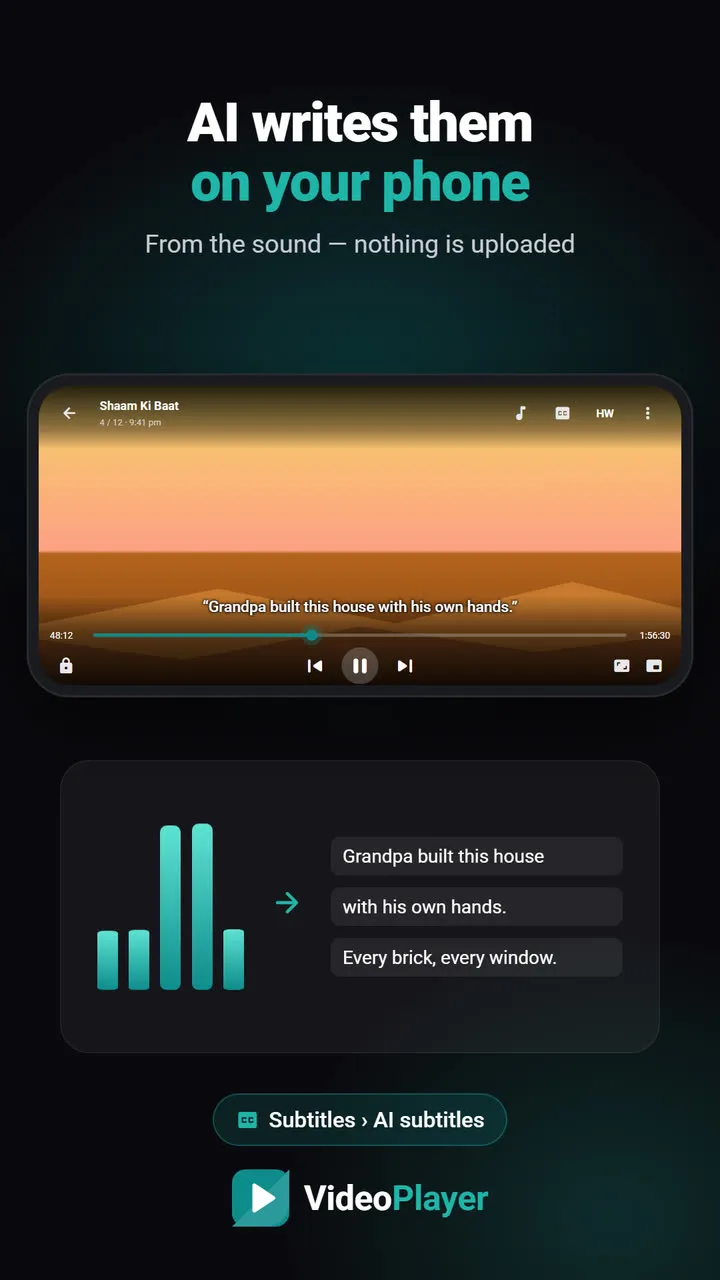
Press Start a new subtitle to begin with an empty line, then add as many as you need. It’s handy for a short clip, a family video or a social-media post. For anything longer than a few minutes, let VideoPlayer’s AI subtitles write the first draft from the audio, then fix the details here.
Time format tips
| You type | Read as |
|---|---|
| 00:01:02,500 | 1 minute 2.5 seconds (SRT style) |
| 00:01:02.500 | Same (VTT style) |
| 1:02.5 | Same, short form |
| 62.5 | Same, in seconds |
A time the SRT editor can’t read turns red and is left unchanged until you fix it. A good subtitle line stays on screen for one to seven seconds and holds two short lines of text at most — the SubRip format page on Wikipedia shows the full structure.
Small fixes that make subtitles easier to read
- Split long lines. More than about 42 characters per line is hard to read on a phone; press Enter in the text box to break it into two.
- Give fast lines more time. If a line flashes by, extend its end time up to the start of the next line.
- Keep names consistent. Search for each spelling with Find text and correct them all.
- Remove empty or duplicate lines. Machine-made subtitles sometimes repeat a line twice in a row.
These are the same habits professional subtitlers follow, and they take only a few minutes in an SRT editor.
When to use another tool
- Every line is early or late by the same amount: use the subtitle sync tool — one setting moves the whole file.
- The gap grows through the film: use the subtitle FPS converter.
- Lots of [MUSIC] and speaker names: the subtitle cleaner removes them in one go.
- Garbled letters: fix the encoding first with the encoding fixer, then edit.
Use your edited subtitle
Save the file next to your video with the same name, and VideoPlayer loads it automatically — or add it from the CC menu. Our guide to add subtitles to a video walks through both ways. An SRT editor fix also improves translation: clean text makes clean Hindi.
Frequently asked questions
How do I edit an SRT file online?
Can the SRT editor change subtitle timing?
Can I create a new subtitle with the SRT editor?
Does the SRT editor work on a phone?
Try it on your own videos
VideoPlayer is free, has no ads and needs no account. Every feature in this guide works offline.
Free tools
Subtitle sync tool
Move every line earlier or later, or fix subtitles that slowly drift.
Open tool →SRT ⇄ VTT converter
SRT to VTT, VTT to SRT, and ASS to either — in your browser.
Open tool →Encoding fixer
é and ?? back to real letters, saved as UTF-8.
Open tool →Video codec checker
See a file’s codecs and if it plays — before you copy it.
Open tool →Subtitle FPS converter
Lines drift later and later? Change the frame rate.
Open tool →Subtitle cleaner
Strip [MUSIC], (laughs) and “Subtitles by…” lines.
Open tool →