Subtitle FPS Converter — Fix Subtitles That Drift Over Time
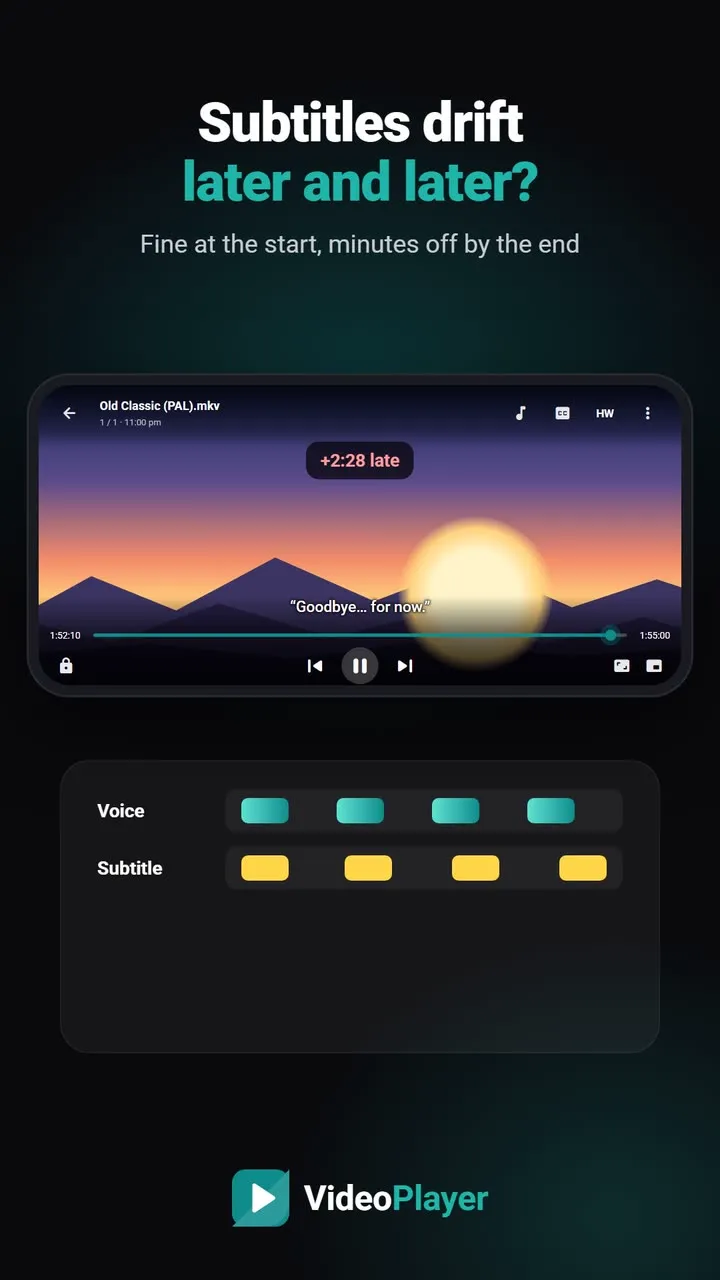
The first scene is perfect, but by the middle the words come a few seconds late, and by the end they are minutes behind. That isn’t a simple delay — the subtitle was made for a video with a different frame rate. A subtitle FPS converter stretches or squeezes every timestamp so the whole file matches your video again. Pick the two frame rates below and download the fixed file. Nothing is uploaded.
Not sure? Subtitles for 23.976 fps releases are the most common. If lines drift later and later, try 23.976 → 25.
🔒 Runs in your browser — your file is never uploaded.
How to use the subtitle FPS converter
- Choose your SRT, VTT or ASS file, or paste the text.
- Under Subtitle was made for, pick the frame rate of the release the subtitle came from. If you don’t know, 23.976 is the most common.
- Under Your video runs at, pick your video’s frame rate. Our free video codec checker shows the details of your file.
- Check the preview and press Download.
Why frame rates make subtitles drift
Films are shot at 24 frames per second, released at 23.976 for NTSC regions and often sped up to 25 for PAL regions. The 25 fps version runs about 4% faster — a two-hour film becomes 115 minutes. A subtitle timed for 23.976 then falls behind steadily: about 2.5 minutes late after an hour. Moving every line by a fixed amount can’t fix that; scaling by the frame-rate ratio can, and that is exactly what a subtitle FPS converter does.
| Subtitle made for | Your video | Speed change |
|---|---|---|
| 23.976 fps | 25 fps | Lines come about 4.1% earlier |
| 25 fps | 23.976 fps | Lines come about 4.3% later |
| 24 fps | 25 fps | Lines come about 4% earlier |
| 29.97 fps | 25 fps | Lines come about 20% later |
FPS problem or a simple delay?
Play the film and compare the gap at the start and near the end:
- Same gap everywhere (say, always two seconds late) — it’s a delay. Use the subtitle sync tool instead.
- Gap grows steadily — it’s the frame rate. Use this subtitle FPS converter.
- Both — convert the FPS first, then shift what’s left.
Not sure of the original frame rate? Try 23.976 → 25 first; if the lines now run early instead, go the other way.
Example: a 25 fps subtitle on a 23.976 film
Say you downloaded a subtitle for a European TV release and your film is a 23.976 fps web release. At 10 minutes the lines are 25 seconds early; at an hour, they are almost two and a half minutes early. Pick 25 under “Subtitle was made for” and 23.976 under “Your video runs at”. The preview shows every timestamp stretched by 4.27%. Download the file, put it next to the film with the same name, and check two points — one near the start, one near the end. If both match, you’re done. If both are off by the same small amount, finish with the sync tool’s one-number shift. This whole job usually takes under a minute with the subtitle FPS converter, compared with hours of manual retiming.
Fix it on the phone without a computer
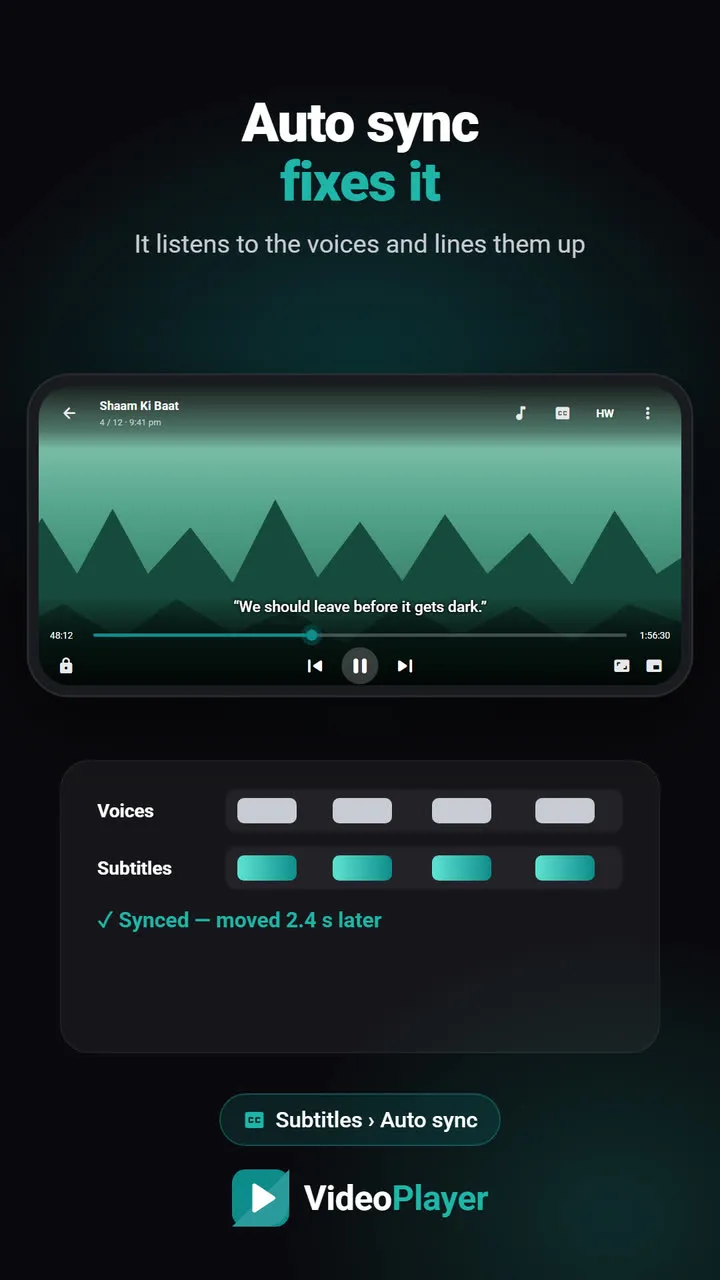
VideoPlayer’s auto sync listens to the voices and corrects both a fixed delay and a frame-rate stretch while you watch — no file editing needed. The converter on this page is handy when you want to share a fixed file or play it on a TV.
Want the background on why 23.976 exists at all? Wikipedia’s article on frame rate covers film, PAL and NTSC.
Frequently asked questions
What does a subtitle FPS converter do?
How do I know if I need a subtitle FPS converter?
Which frame rates does the subtitle FPS converter support?
Is my subtitle file uploaded?
Try it on your own videos
VideoPlayer is free, has no ads and needs no account. Every feature in this guide works offline.
Free tools
Subtitle sync tool
Move every line earlier or later, or fix subtitles that slowly drift.
Open tool →SRT ⇄ VTT converter
SRT to VTT, VTT to SRT, and ASS to either — in your browser.
Open tool →Encoding fixer
é and ?? back to real letters, saved as UTF-8.
Open tool →Video codec checker
See a file’s codecs and if it plays — before you copy it.
Open tool →Subtitle cleaner
Strip [MUSIC], (laughs) and “Subtitles by…” lines.
Open tool →ASS to SRT converter
Anime ASS files to plain SRT, italics kept.
Open tool →