Lecture Videos: Watch Faster, Revise Smarter
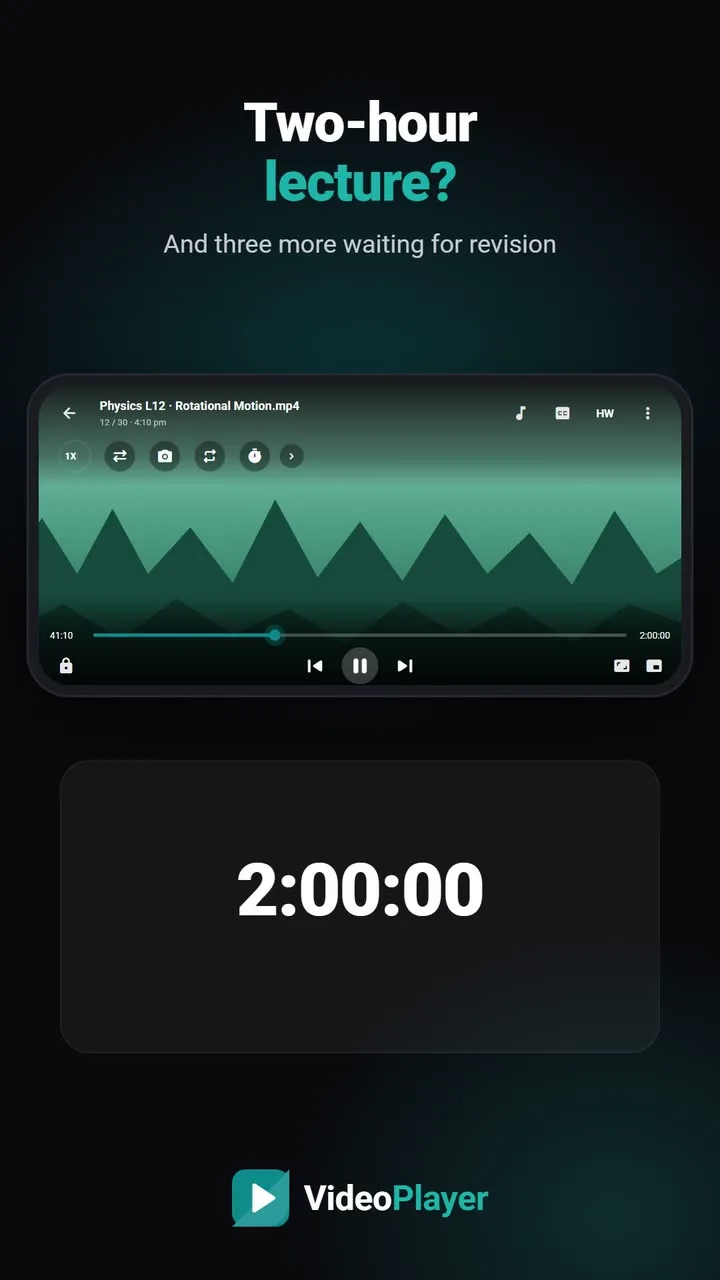
Coaching classes, college recordings and course downloads have made lecture videos the way most Indian students study. They are also slow: a two-hour class often holds forty minutes of new material. Used well, a good video player turns that into a faster, sharper study session. This guide covers the speed that saves time without losing understanding, plus three tools that make revision much easier.
Pick the right speed for lecture videos
Most teachers speak at about 120–150 words per minute, while people can follow speech comfortably at much higher rates. That gap is why speed helps. But faster isn’t always better — understanding drops sharply when you push too far. Use this as a starting point:
| Type of class | Good speed |
|---|---|
| Revision of a topic you know | 1.75× – 2× |
| Theory, explanations, slow speaker | 1.5× |
| New maths, physics derivations, numericals | 1× – 1.25× |
| Fast speaker or a new language | 0.85× – 1× |
In VideoPlayer, tap the speed button in the quick bar and pick a value, or drag the slider from 0.25× to 4× in 0.05× steps. You can also change the playback speed mid-lecture whenever the topic gets harder.
Hold for 2× through the easy parts
Every class has parts you can skim: attendance, announcements, a solved example you already understand. Instead of changing the setting, press and hold on the screen — the video plays at 2× while you hold and returns to normal when you let go. Double-tap the left or right side to jump 10 seconds. Our guide to double-tap and hold for 2× shows both gestures.
Loop the hard part with A-B repeat
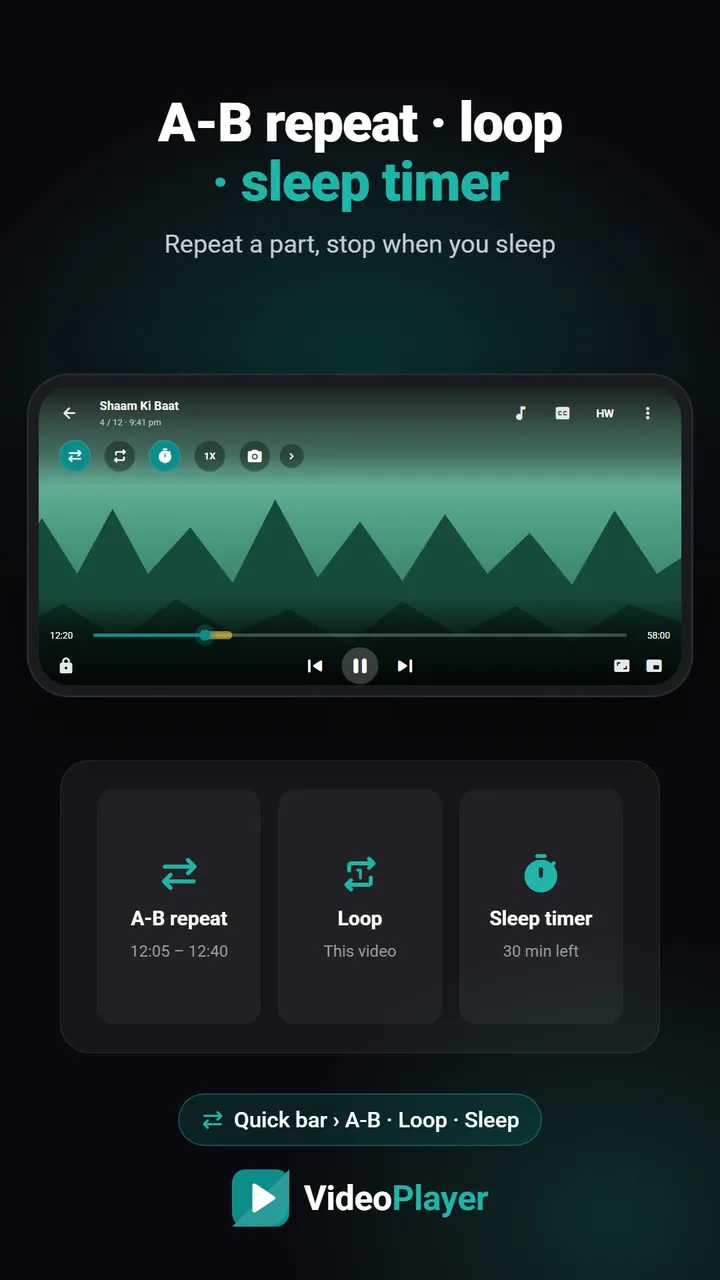
When a derivation or a tricky explanation goes over your head, don’t drag the seek bar back again and again. Set point A at the start of the explanation and point B at the end. The segment repeats until you switch it off, so you can pause, write and replay calmly. See A-B repeat and loop.
Bookmark and screenshot for revision
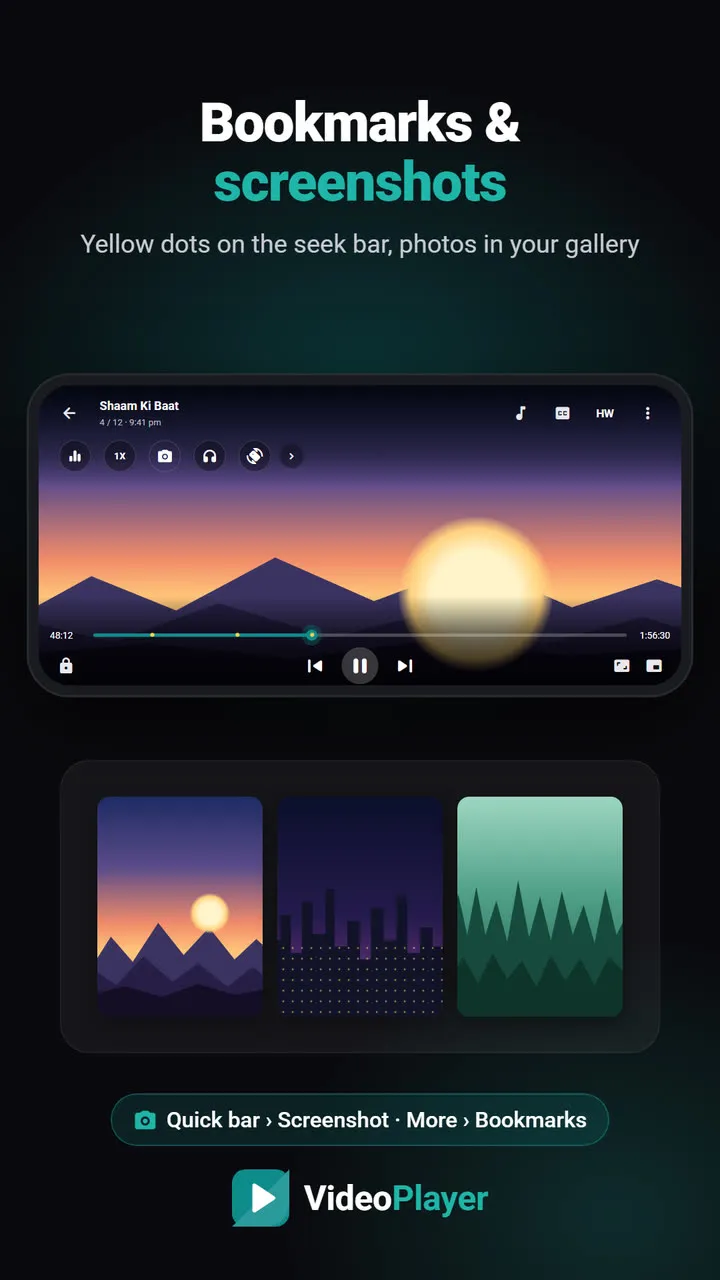
Revision is where lecture videos usually fail — nobody wants to re-watch three hours to find one formula. While you watch, add a bookmark at every important point; the marks appear on the seek bar, so later you jump straight to them. Take a screenshot of the board or slide instead of copying it by hand. VideoPlayer saves both, as explained in video bookmarks and screenshots.
Resume exactly where you stopped
A long class rarely fits in one sitting. VideoPlayer remembers the exact second you stopped in every file and shows the class under Continue watching. That’s handy when your lecture videos are split into many parts across folders.
Study better, not just faster
- Preview first. Skim the whole class at 2× to see the structure, then watch properly.
- Pause and predict. Before the teacher solves a question, pause and try it yourself.
- Space your revision. Revisit your bookmarks after one day, one week and one month.
- Protect your eyes. Take a short break every 45 minutes.
The idea of spacing your revision is well researched; Wikipedia’s article on spaced repetition explains why it helps memory.
Lecture videos with no sound or poor audio
Classroom recordings often have a quiet teacher and a noisy fan. Turn on Dialogue Boost to lift the voice, and if the teacher speaks too softly, boost the volume past 100%. If the recording has no captions and the accent is hard to follow, AI subtitles can write them on your phone.
Frequently asked questions
What is the best speed for lecture videos?
Does watching lecture videos at 2× hurt understanding?
How can I repeat one part of a lecture video?
How do I revise lecture videos quickly?
Try it on your own videos
VideoPlayer is free, has no ads and needs no account. Every feature in this guide works offline.
Guides
MKV no sound
Picture plays, audio is silent? Five fixes, easiest first.
Read the fix →Format not supported
“Can’t play this video”? Find the cause, then play it.
Read the fix →Black screen, sound plays
Hear the movie but can’t see it? Six fixes.
Read the fix →Subtitles not showing
The SRT is right there, but nothing shows? Seven fixes.
Read the fix →Video lagging
Stutter, jerks and frozen frames — eight fixes.
Read the fix →Learn English with movies
Dual subtitles, slower speed, repeat one line — a real method.
Read the fix →