Video to Audio: How to Keep Only the Sound From a Video
A wedding song recorded on a phone, a speech you want to listen to on the bus, a ringtone from a film scene — sometimes the sound is all you want. Websites that turn video to audio make you upload your file and wade through ads. VideoPlayer does it on the phone, in a few taps, and saves a music file your phone treats like any other song.
How to convert video to audio
- In the library, long-press the video.
- Choose Save audio.
- Drag the handles if you only want part of it — by default the whole video is selected.
- Tap Save audio. When it’s done, the file is in Music/VideoPlayer.
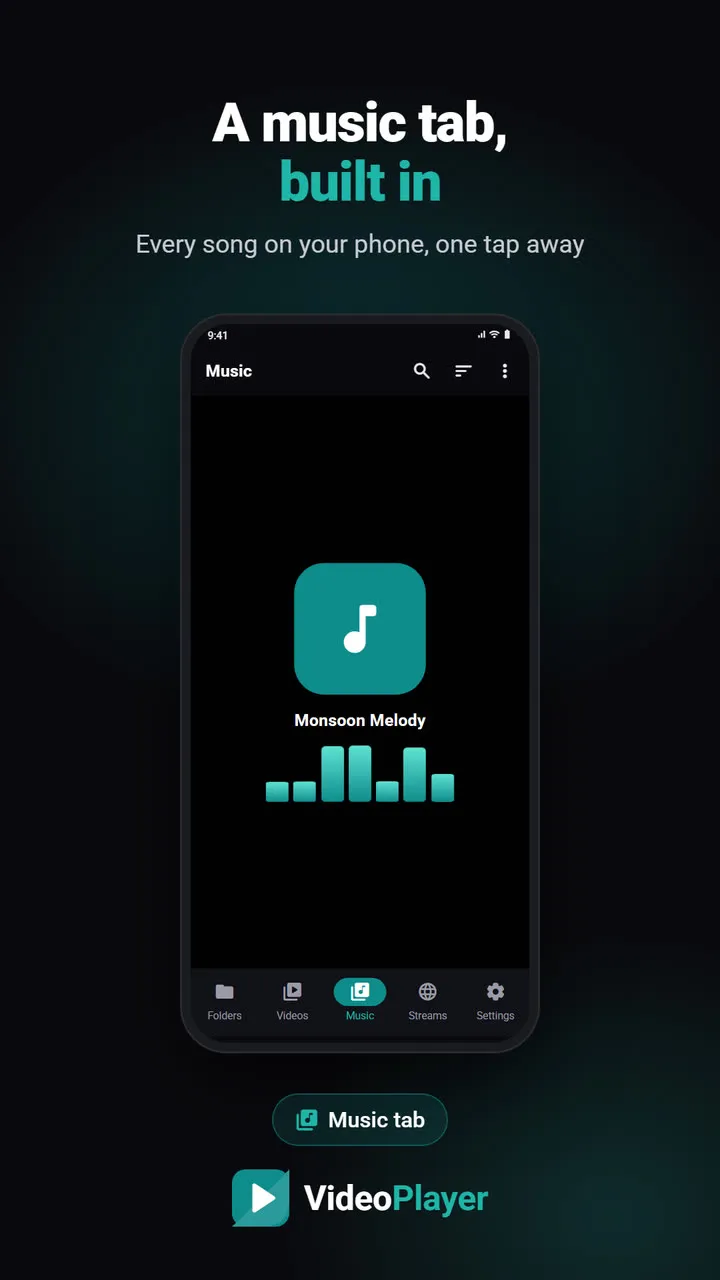
It appears in your music apps — including VideoPlayer’s own Music tab — and you can share it from the confirmation screen.
M4A, not MP3 — and why that’s fine
The file is saved as M4A (AAC), the format phones encode natively. It plays everywhere MP3 does — every Android phone, iPhone, laptop, car stereo made in the last decade, WhatsApp and Instagram — and at the same file size it usually sounds better than MP3. If a particular app insists on MP3, any converter can change it, but you’ll rarely need to.
Good uses of video to audio
| From | Keep |
|---|---|
| Function recordings | A song, a blessing, a speech |
| Lectures and talks | Audio to revise on the go |
| Podcasts recorded on video | Listen with the screen off |
| Your own guitar or singing videos | A practice track |
| Films | A short clip to use as a ringtone |
Want to listen without converting?
If you just want to hear a video with the screen off, you don’t need to make a file at all — switch on background play and lock the phone. Converting is for when you want to keep the audio, share it, or play it in another app.
Good to know
- Sound formats: AAC, MP3, Opus and most phone recordings convert directly. Some films use DTS or E-AC3 that the phone can’t re-encode; VideoPlayer tells you if a file can’t be converted.
- Respect copyright: converting your own recordings is fine; check the rights before sharing someone else’s music.
- Need a video clip instead? Use the video cutter.
Turn video to audio for a ringtone
- Long-press the video and choose Save audio.
- Drag the handles around the 20–30 seconds you want — ringtones longer than that are rarely heard in full.
- Save it. The file lands in Music/VideoPlayer.
- Open your phone’s Settings → Sound → Phone ringtone (the name varies by brand), choose Add or From files, and pick the new file.
The same video to audio file works as a notification sound or an alarm tone too.
Android plays a ringtone from the very start of the file, so set the start handle exactly where you want the tone to begin — the first beat of the chorus, or the opening word of a famous dialogue. A clean start makes all the difference.
AAC and the M4A container are explained in Wikipedia’s article on Advanced Audio Coding.
Frequently asked questions
How do I convert video to audio on Android?
Is the audio saved as MP3?
Is my video uploaded to convert it?
Can I save only part of the audio?
Try it on your own videos
VideoPlayer is free, has no ads and needs no account. Every feature in this guide works offline.