Will Your Battery Last the Movie? How VideoPlayer Tells You
There’s a particular kind of disappointment in a phone dying ten minutes before the end of a film — on a train, in a power cut, on a long bus ride. VideoPlayer keeps an eye on your battery for you: it estimates how much charge you’ll have left when the video ends, and warns you early if it won’t make it, while there’s still time to do something about it.
How the battery estimate works
While you watch, VideoPlayer checks the charge level every 20 seconds. It starts with a typical figure for video playback (around 12% per hour), then switches to your phone’s real rate once it has seen the level drop by a couple of percent. It divides the time left in the video by your playback speed and works out how much charge you’ll have at the end.
If you plug in, the estimate stops — there’s nothing to worry about.
Where you see it
- A warning only when it matters. If the phone is expected to run out of charge before the end, a small amber line appears under the title: Battery may run out before the end. Otherwise nothing is shown — no clutter.
- The exact figure, any time. Open ⋮ More → Information and look under Battery: Now 54%, At the end about 31%.
- A low-battery nudge. At 15% or below, a message offers to Dim the screen with one tap.
How to make your battery last a whole film
| Change | Why it helps |
|---|---|
| Lower the brightness | The screen is the biggest drain. Swipe down on the left side. |
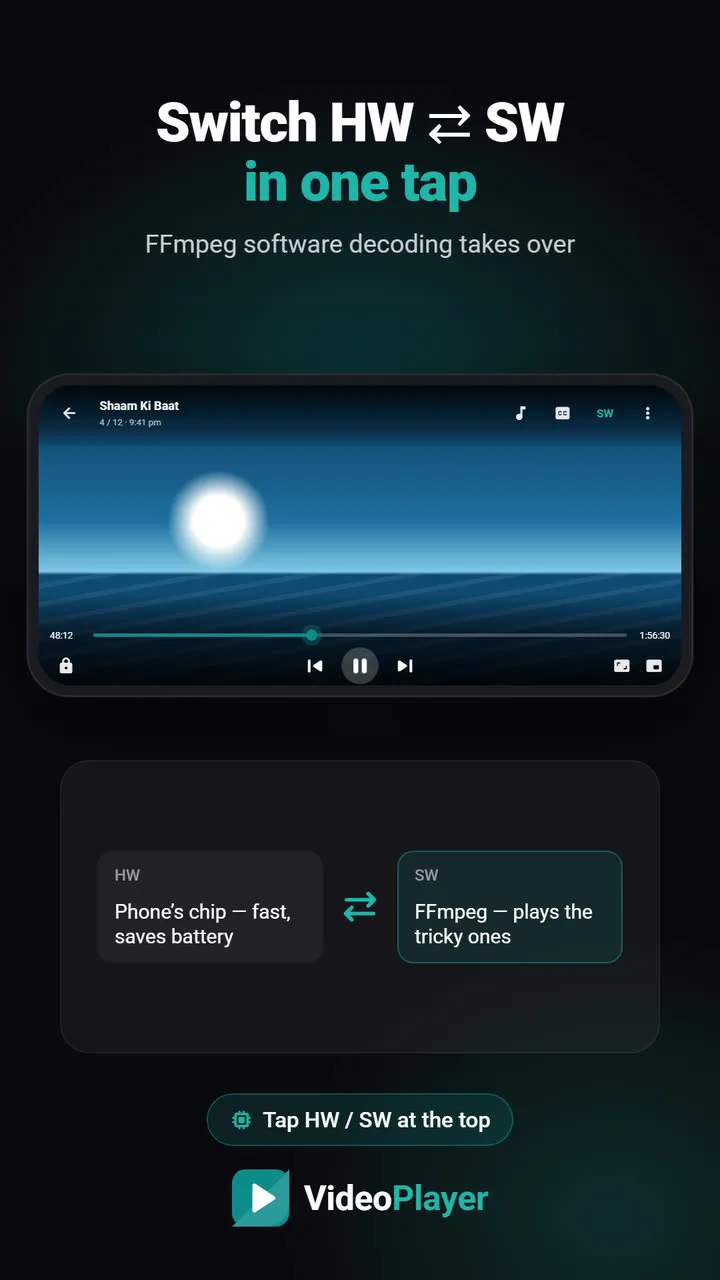
| Stay on HW decoding | The video chip uses far less power than software decoding — see HW vs SW. |
| Listen instead of watching | For talks and songs, background play with the screen off uses a fraction of the power. |
| Turn on battery saver | Android limits background work while you watch. |
| Use earphones | Driving the speaker loud takes more power than earphones. |
| Download instead of streaming | Mobile data uses extra power. |
How accurate is the battery estimate?
It gets better the longer you watch. In the first minutes it uses a typical rate; after a few minutes and a couple of percent of drop, it uses what your phone is actually doing. Big changes — like turning the brightness right up — show in the estimate within a minute or two. Treat it as a friendly forecast, not a promise.
Phone settings that stretch a charge
A few one-time changes help every film, not just tonight’s:
- Lower the refresh rate. Phones with 90 Hz or 120 Hz screens can be set to 60 Hz in display settings. Films are 24 or 30 frames a second, so you lose nothing while watching.
- Dark theme. On OLED screens, dark menus and the black bars around a film use almost no power.
- Turn off what you’re not using: hotspot, location and Bluetooth when you aren’t wearing earbuds.
- Keep the phone cool. A hot phone drains faster and may dim the screen; avoid watching while it charges under a pillow.
For more ways to save power, Google’s help page on fixing battery drain on Android is a good checklist.
Frequently asked questions
How do I know if my battery will last the movie?
How does VideoPlayer estimate the battery at the end?
Why don’t I see a battery estimate while charging?
What drains the battery most when watching videos?
Try it on your own videos
VideoPlayer is free, has no ads and needs no account. Every feature in this guide works offline.